

Quick answer
Yes, security cameras can slow your internet, but usually only when you watch them away from home. Each live stream uses your upload speed. One camera at full quality can use up to about 8 Mbps. Some nbn plans have a top upload speed of 20 Mbps or less.
- Do it yourself, call us if stuck
- About 30 minutes
The short version
- Cameras that record at home use very little internet. Watching them away from home uses your upload speed.
- One camera in Reolink's Clear mode can use up to about 8 Mbps of upload. Fluent mode uses about 0.5 Mbps.
- Some nbn plans have a top upload speed of 20 Mbps or less, so a few full-quality streams can fill it.
- Test one change at a time. Do not lower every recording setting before you know the cause.
On this page
- The short version
- Do security cameras slow down your internet?
- How much upload speed do security cameras use?
- When Wi-Fi is the problem instead
- Run a short test before you change anything
- Use a lighter viewing stream before lowering recordings
- Check the cables and the recorder
- Pick the fix that matches what you found
- What to write down before you call for help
- FAQ
- Sources and further reading
- Get the network and cameras checked together
- Recommended Solutions for This Security Issue
This guide is for Melbourne homes and small businesses that watch their cameras on a phone. It shows you how to find the real cause with a few simple checks, without switching off your protection.
Do security cameras slow down your internet?
Your home network and your internet connection are not the same thing. Wi-Fi and network cables carry video between your cameras, recorder and router. Your internet connection (nbn or similar) then links your home to the outside world. A problem at any one of these points can feel like “slow internet”.
Cameras that record to a recorder inside your home use very little internet. Reolink’s own guidance says a camera will not noticeably slow your internet unless you view it remotely. The slowdown usually starts when you open a live view from outside the house, or when a cloud backup is running.
Pick the card that matches what you see. Then follow that path through this guide.
Slow all through the house
Check your broadband upload speed and whether phones and TVs are slow too.
Slow in one room
Check the Wi-Fi signal in that room before you blame the internet plan.
Only the camera app is slow
Check the video quality setting, the recorder and the connection at both ends.
How much upload speed do security cameras use?
Upload speed is how fast your home sends data out to the internet. Download speed is how fast it brings data in. When you watch a camera from your phone while you are away, the video leaves your home, so it uses your upload speed. Internet plans usually advertise download speed first, and upload is much smaller.
These camera figures come from Reolink’s published guide to its own WiFi and PoE camera bandwidth: 8192 kbps in Clear mode and 512 kbps in Fluent mode. Other brands differ, so check your own camera’s settings. Axis, another maker, says high-quality video at a high frame rate uses about 2 to 3 Mbit/s per device. Higher resolution cameras generally need more, as we explain in our Hikvision 6MP vs 8MP guide.
nbn lists a top upload speed for each home plan. nbn’s speed plans page shows Home Standard at 20 Mbps upload (5 to 20 Mbps on fibre to the node or building connections), Home Basic II at 10 Mbps (5 to 10 Mbps on those same connections) and Home Basic I at 1 Mbps. nbn also says actual speeds can drop below these top figures.
Here is a worked example on a Home Standard plan with a 20 Mbps upload speed. It uses Reolink’s maximum figures, so real use is often lower.
| Cameras being watched at once | Most upload used | Fits in 20 Mbps? |
|---|---|---|
| 1 camera in Clear mode | 8 Mbps | Yes, 8 of 20 Mbps |
| 2 cameras in Clear mode | 16 Mbps | Yes, but only 4 Mbps is left for calls |
| 4 cameras in Clear mode | 32 Mbps | No, it is over the limit |
| 4 cameras in Fluent mode | 2 Mbps | Yes, 2 of 20 Mbps |
On Home Basic I, nbn’s top upload speed is 1 Mbps. That is less than a single Clear mode stream at its maximum.
Try it yourself Type the upload speed from a speed test, or tap a plan to use its top speed. Then choose how many cameras you watch at once. 32 Mbps needed out of 20 Mbps Camera figures are Reolink's published maximums for its own cameras, so yours may differ. nbn plan speeds are the top speeds nbn lists, and real speeds can be lower, so a speed test is the best number to use.Will your cameras fit your upload speed?
The same figures show how much data a stream can use. If one camera streamed non-stop for 24 hours, Reolink’s maximum works out to about 88 GB in Clear mode and about 5.5 GB in Fluent mode. Most people watch for a few minutes at a time, so real use is far lower. Our guide on camera app mobile data covers what this means for your phone plan.
When Wi-Fi is the problem instead
A camera with a weak Wi-Fi signal can struggle to send a steady picture even when your internet is healthy. Distance, walls and busy Wi-Fi all play a part. Cameras, laptops and TVs share the same wireless airtime, so a speed test on a wired computer cannot tell you everything about the Wi-Fi link.
Test a phone or laptop near the router. Then test the same device in the problem area, doing the same task. If it is good near the router and poor at the far end of the house, fix the Wi-Fi coverage before you pay for a faster plan.
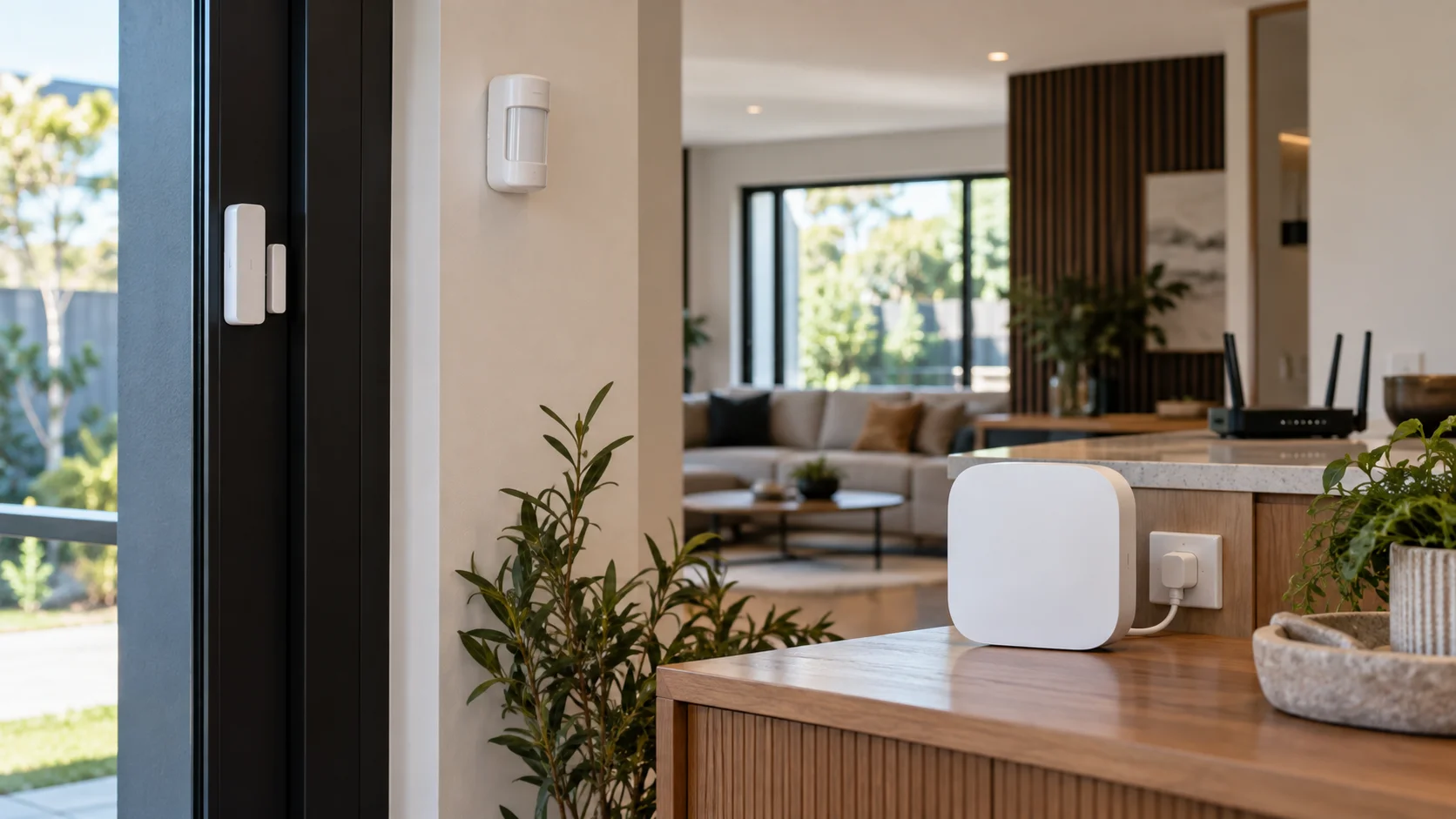
A mesh system can help, but each extra unit also needs a good connection back to the router. A unit placed deep inside a dead spot will not fix it. A network cable between units works better than Wi-Fi between units. Ask an installer to check placement and the real path the video takes.
Run a short test before you change anything
Choose a quiet time when you can repeat the same checks. Keep the cameras powered on and recording. Do not switch off cloud backup or recording to test, because you could miss footage or alerts.
- Note the time, which devices are slow and whether it is only Wi-Fi.
- Run a speed test on one device in one spot. Write down the download and upload results.
- Repeat the test with an Ethernet cable if you have a computer you can plug in.
- Close extra live views on your own devices, and ask your household if anyone is watching remotely.
- Open one camera on your phone using mobile data, then test again.
- Write down which single change helped, then put everything back to normal.
Use a lighter viewing stream before lowering recordings
Many systems have a lighter stream for live viewing and a better one for recording. The names vary by brand: Fluent, substream or standard. Where your system allows separate settings, choosing the lighter stream for the phone app makes remote checks easier and leaves your recordings alone. As the table above shows, the difference can be large.
Change only the viewing option in the app. Then look at some recent recordings to confirm they still have the detail you expect. On some equipment, a quality setting changes more than the phone view, so do not assume every quality control is safe for evidence.
Lower resolution or fewer frames per second can cut traffic, but you lose detail. Think about what that camera has to do. Recognising a person at your front door is different from watching a quiet back garden. Test any change at night too.
If you pay a monthly fee for cloud storage, that upload also uses your connection. Our guide to security cameras without monthly fees explains the local recording option. After any change, our camera recording checks show you how to confirm everything is still recording.
Check the cables and the recorder
If the problem also shows when you play back video on a wired computer at home, the fault may be in the recorder, the network switch or a cable. A damaged cable or an overloaded connection can cause trouble even when your internet plan is fine. The number of cameras alone does not tell you which part is struggling.
Ask where the video actually travels between the camera, recorder, router and your phone. Axis suggests looking at available bandwidth, shared traffic and the network path when you troubleshoot.
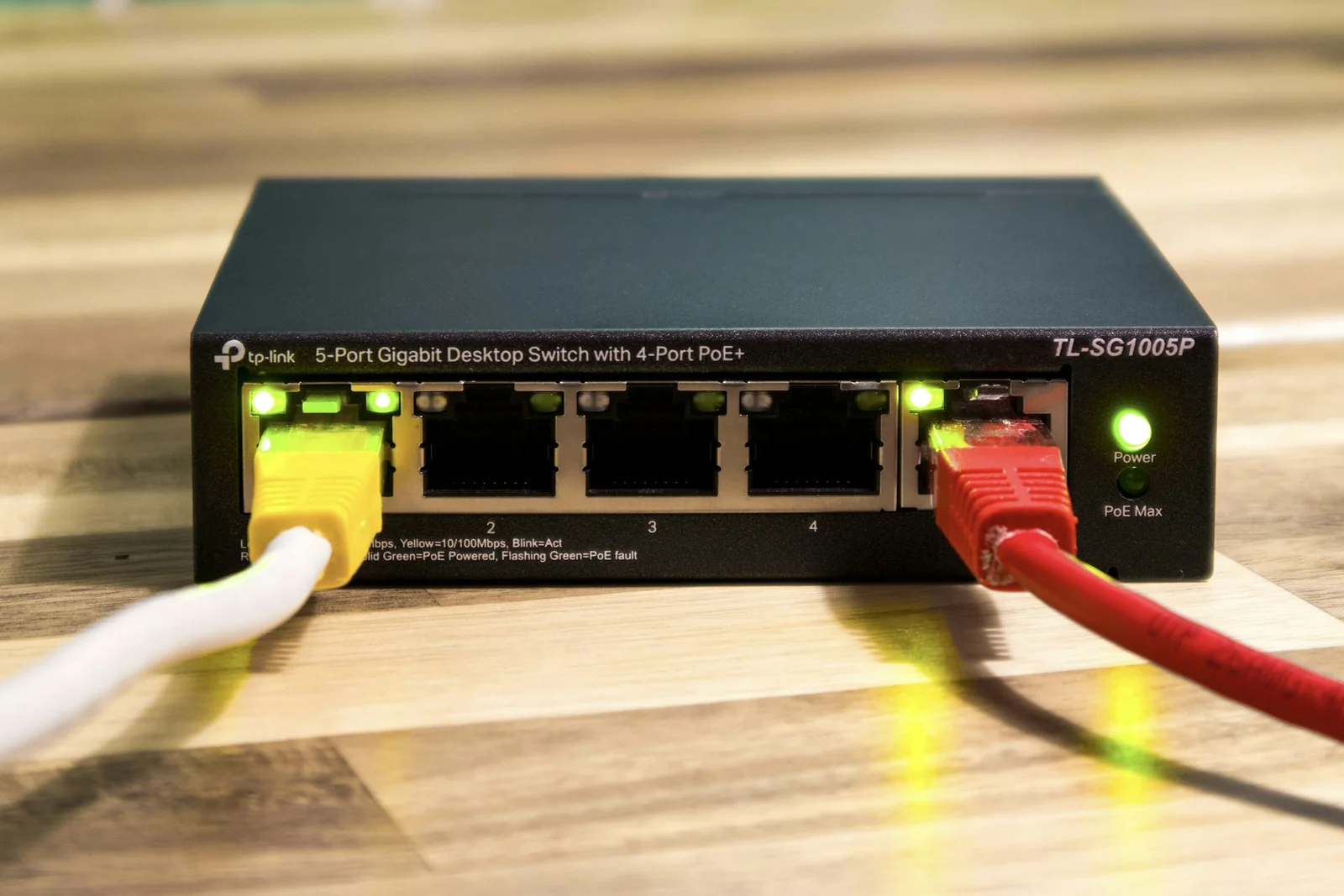
Do not unplug cables you cannot identify. One lead may power a camera, link an alarm communicator or connect another part of the house. Photograph any labels you can see and describe the layout instead. Leave ceiling spaces and permanent cabling to a qualified installer, and read about our professional CCTV installation if you are planning new cable runs.
A recorder that struggles to show many high-quality cameras at once can also make the app feel slow. That is different from your whole household losing internet speed. If your recorder is old, our guide on whether to keep or replace an old CCTV system can help, and our CCTV upgrade and NVR replacement page explains the options.
Pick the fix that matches what you found
- Only remote viewing is slow, but home browsing and playback at home are fine: start with the lighter viewing stream and check the connection at both ends.
- Household calls drop when a cloud backup or a multi-camera view is open: look at your upload speed and when the uploads run.
- One part of the house is always weak: fix the Wi-Fi coverage there.
- Speed tests show your plan is too small for normal use: ask your provider which upload speed each plan includes.
An installer may suggest a better router position, a network cable to a hard-to-reach camera, or a tidier network layout. Some routers have Quality of Service settings that give video priority, but they cannot create speed your connection does not have. Check that alerts and recordings still work after any network change.
A faster plan makes sense when your tests show normal household use is more than your plan can carry. Ask what upload speed the plan includes, not only the download speed. A new plan will not repair a failing cable or a weak link between mesh units.
Our guide to wired versus wireless security cameras explains how each type uses your network. If your internet goes down altogether, see how a home alarm works without Wi-Fi or internet.
What to write down before you call for help
A short, clear note helps an installer find the fault faster. “The office video call freezes when I open four cameras on mobile data” is far more useful than “the cameras ruined the Wi-Fi”. Include:
- The router and recorder models.
- Whether each camera uses a cable or Wi-Fi.
- The times you tested and your upload and download results.
- Whether playback at home works.
- Every change you made, and the result of each one.
For example, a family might notice that evening calls improve when the four-camera view on a phone is closed. That points to testing outgoing video, but it does not mean every recording setting needs to change. Another home might see the same problem only in an upstairs bedroom, which points to Wi-Fi coverage instead.
FAQ
Eight quick answers to the questions people ask most.
Do security cameras slow down Wi-Fi?
Sometimes. Wireless cameras share your Wi-Fi with phones and TVs, so a weak signal or a busy network can cause lag. Cameras plugged in with a network cable do not use Wi-Fi for that connection. Test the signal near the camera before you change your plan.
How much upload speed do I need for security cameras?
Plan on up to about 8 Mbps for each camera you watch at full quality at the same time, using Reolink’s published maximum for its own cameras. A lighter stream can be about 0.5 Mbps. Add up the streams you actually use at once, then keep some spare for video calls.
How much data do security cameras use?
If one camera streamed non-stop for 24 hours, Reolink’s maximum works out to about 88 GB in Clear mode and about 5.5 GB in Fluent mode. Most people only watch for short times, so real use is far lower. Cameras that record only to a recorder at home send nothing to the internet.
Do cameras use the internet all the time just because they record all the time?
Not necessarily. Recording to a recorder in your home stays inside your home. Cloud backup and remote viewing use the internet. Check how your own system is set up.
Can wired cameras slow the network too?
Yes, if they share a connection that is too small or if equipment is overloaded. Cables keep the camera off your Wi-Fi, but remote video still needs upload speed from your internet plan.
Will a faster internet plan fix weak camera Wi-Fi?
No, not by itself. A faster plan does not repair a weak Wi-Fi signal. Test the coverage and the path to the router first. Change plans only when your tests show the plan is the limit, and check its upload speed.
Should I turn all my cameras down to low quality?
No. Start with a lighter live-view setting in the app, if your system has one. Leave recordings alone until you know the cause. Turning every camera down can throw away useful detail without fixing a separate fault.
Why does my app work at home but struggle when I am away?
Away from home, the video has to leave your home using your upload speed and then reach your phone over its own connection. Either end can be the limit. Test one lighter stream before you decide the recorder is faulty.
Sources and further reading
- Reolink: What is the required bandwidth of Reolink WiFi and PoE cameras? (source of the 8192 kbps and 512 kbps figures)
- Reolink: Do IP cameras slow down your network?
- Axis: Troubleshooting guide for network connection (source of the 2 to 3 Mbit/s figure)
- nbn: Residential speed plans (source of the upload speeds for Home Basic I, Home Basic II and Home Standard)
Camera figures are the makers’ own published maximums for their own products, and your cameras may differ. nbn speeds are top speeds for each plan, and actual speeds can be lower. The worked example and data figures are our own arithmetic from those published numbers. Last checked 7 October 2026 by Sergi Sipko, licensed security installer, Security Adviser and Equipment Installer Licence Z47-808-30S.
Get the network and cameras checked together
If you still cannot find the cause, ask SIPKO about CCTV repairs and servicing in Melbourne or our wider security-system repair and maintenance. Send us your test results and tell us which jobs at home are affected. A good visit finds the slow point, keeps the recording detail you need and checks the result under normal use.

Update history
- 7 October 2026: Rewrote in plain English, added nbn upload speeds, Reolink and Axis figures with sources, a worked example, a calculator and more FAQ answers.
- 5 October 2026: First published.
Did this fix it?
Good to hear. If we saved you a call, a short Google review helps other Melbourne homes find honest advice.
Leave a Google reviewLet us take a look. Tell us what you found and a licensed installer will help you find the cause.
Get a free quote or call 0406 432 691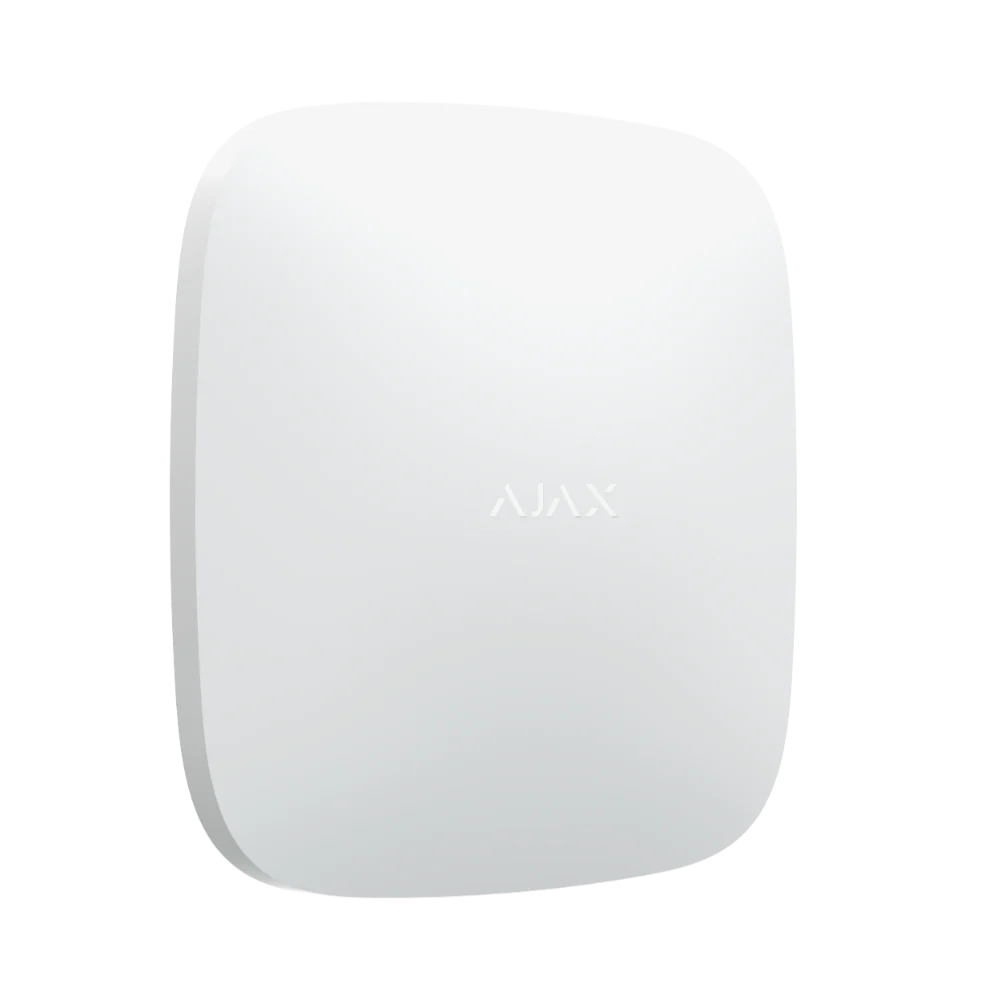 Featured Ajax product
AJAX Hub 2 Plus
The advanced security panel at the heart of an Ajax system. It connects up to 200 devices.
See the Ajax system →
Featured Ajax product
AJAX Hub 2 Plus
The advanced security panel at the heart of an Ajax system. It connects up to 200 devices.
See the Ajax system →
- Licensed and insured
- Licence Z47-808-30S
- Melbourne and Mornington Peninsula
- Free onsite quote
Google reviews
What Melbourne customers say




Local help from SIPKO
SIPKO Security
Get your free onsite quote
Tell us about your property. A licensed installer will get back to you with a clear, honest answer.
- Licensed and insured
- Melbourne and Mornington Peninsula
- Mon to Sat, 8am to 6pm
The quote form opens as you scroll here.