Uniview Camera Offline: What Should You Check First?
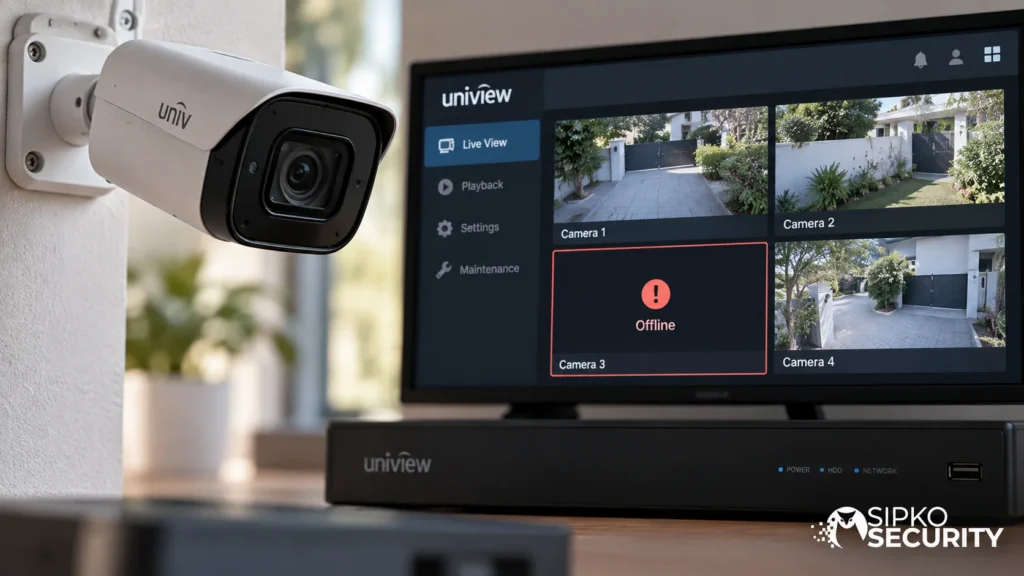
The NVR screen shows one camera as “Offline.” Before assuming a dead camera, a bad cable, or a network meltdown, it’s worth asking a more basic question: what does “offline” actually mean here?
“Offline” on a Uniview NVR is not one condition. It can point to several different situations — and jumping straight to a fix without knowing which one you’re looking at is how people replace working cameras or waste hours chasing the wrong problem.
This guide covers what “offline” means when it’s the NVR itself reporting it — not the mobile app. If your cameras record fine locally but the phone or EZView app can’t see them, that’s a different, already-covered scenario: see EZView App Not Showing Video? for that specific chain.
Local Offline and Remote Offline Are Different Problems
Before going further, it’s worth being precise about which “offline” is actually happening:
- The NVR itself shows the camera as offline — checked directly on the recorder’s own screen or web interface, with no phone or app involved.
- The NVR shows the camera as online, but the app doesn’t — a separate issue, covered in the EZView guide linked above.
This guide is about the first situation. If you haven’t actually checked the NVR’s own display yet — only the app — that’s the first thing to do, because it tells you which category of problem you’re actually dealing with.
Uniview’s Own Documentation Confirms “Offline” Covers More Than One Cause
This isn’t a guess about how Uniview systems behave — it’s documented directly by Uniview.
“Offline (Incorrect Username or Password)” is a specific named Offline status documented by Uniview. Its existence is enough to show why an Offline indication should not automatically be treated as proof that the camera itself has failed.
Why This Distinction Actually Matters
If the NVR is showing a specific, labelled offline state rather than a plain “Offline,” that label is telling you something useful — and skipping past it to a generic fix wastes the one piece of information the system is actually giving you.
READ THE EXACT STATUS → IDENTIFY THE CATEGORY → THEN DIAGNOSE
A credential-related status calls for a different diagnostic path from a connectivity problem. That is why reading the exact NVR status should come before changing cables, credentials or configuration.
What Can You Check on the NVR Itself, Safely?
Before doing anything that changes a setting, it’s worth gathering information directly from the recorder:
- What exact status does the NVR show next to the camera — plain “Offline,” or a more specific label?
- Does that status change on its own after a minute or two, or does it stay fixed?
- Are the other cameras connected to the same NVR still available?
- Has anything changed recently — a credentials update, a network change, a power interruption?
- Is this one camera behaving this way, or several at once?
None of this requires opening menus that change configuration. It’s observation, and it already narrows down which of the several possible “offline” categories you’re likely dealing with.
Why One Offline Camera Doesn’t Automatically Mean the Whole System Has Failed
If only one camera is affected while the others remain available, the symptom is narrower — but that still does not identify the cause.
One camera offline
The symptom is limited to a narrower part of the system, but the underlying cause still needs to be identified.
Several cameras offline
Several cameras going offline at the same time is a different pattern, worth noting on its own — it changes the scope of what’s worth checking, without by itself telling you what the underlying cause is either.
Treating every offline notice the same way — as if it’s always the same emergency requiring the same response — is exactly what leads to unnecessary camera swaps or unnecessary callouts for something a specific, documented status could have already pointed to.
When Does This Need a Technician?
Some of what’s involved here — changing credentials or camera/NVR configuration, working through IP addressing on the same subnet as the NVR, or making changes inside NVR configuration menus — isn’t something this guide walks through step by step, because getting it wrong on a live system can create a second problem on top of the first.
If the NVR is showing a specific offline status you don’t recognise, if the status won’t resolve after checking the basics above, or if you’d rather not start changing camera or NVR configuration yourself, that’s the point to bring in a professional. SIPKO Security provides Uniview CCTV maintenance and fault diagnosis in Melbourne — checking the actual cause on the recorder and the network behind it, rather than assuming a camera needs replacing.
FAQ
Why does my Uniview NVR show a camera as offline?
It depends on the specific status shown. Uniview documents “Offline (Incorrect Username or Password)” as a specific named status, which is why the exact label matters rather than treating every Offline indication as the same condition.
What if the camera works on the NVR but not in EZView?
That’s a different issue from what this guide covers. If the NVR itself shows the camera as online but the app doesn’t, that points to the app/remote side of the system rather than the camera’s local connection to the NVR — see our EZView guide for that specific chain.
Does one offline camera mean my whole CCTV system needs attention?
Not automatically. If one camera is affected while the others remain available, the symptom is narrower. If several cameras become unavailable at the same time, the diagnostic scope changes — but neither pattern identifies the cause by itself.
Sources
- Uniview. How to Troubleshoot when the Camera Shows Offline (Incorrect Username or Password) on a Uniview NVR. Version 1.1, 26 September 2023.