
Is your camera still recording, or are you only seeing a live picture? Before a long trip, the most useful check is to create a small test event, find it in playback and save a copy. Repeat that for every important view. An online symbol, moving picture or notification alone does not prove that usable video is being stored.
Start several days before you leave. That gives you time to fix a full memory card, a failed recorder drive or an account problem without experimenting on the morning of departure. You do not need to change every setting. You need evidence that the system performs the jobs you expect while the house is empty.
This guide concentrates on recording and retrieval. For the wider departure routine, including the house and trusted contacts, use SIPKO’s holiday home-security checklist.
Start with four separate checks
Live view
Can you see what is happening now?
Playback
Can you find what happened earlier?
Retention
Does footage last long enough?
Export
Can you save a usable copy?
A system can pass one check and fail another. A camera may stream normally while its memory card is missing. A recorder may retain footage locally while the phone app cannot reach it. A notification may contain a thumbnail even though the full clip is unavailable. Treat each result separately so you know what actually needs attention.
Write down the location, test time and result for each camera. A simple note such as “driveway, Tuesday 7.10 pm, playback and export passed” is more useful than “CCTV seems fine”. Include a side gate or rear access camera even if it is not one you normally watch.
Make a test recording you can recognise
Walk through each view using an ordinary route on your property. Note the time on your phone, wait for the clip or recording segment to become available, then open playback rather than live view. Select the correct camera and date. Play through the start, middle and end of your walk.
For motion recording, check whether the approach is captured early enough to be useful. Can you see someone reaching the door, or only walking away? For continuous recording, look at a period before and after the event as well. A coloured timeline is helpful, but actually playing the video gives better evidence than a recording indicator.
If nothing appears, check the selected date, camera, recording source and event filters first. Some apps separate cloud clips, recorder footage and camera-card recordings. A search limited to person events can hide ordinary recordings. Do not immediately conclude that the drive failed because one filtered search returned no results.
Dahua’s official recording playback troubleshooting identifies drive detection, channel recording status, recording schedules and overwritten footage as checks. The exact menus vary by recorder and software version. Use your own model’s guide, and leave hardware investigation to the installer.
Check last night, not just this afternoon
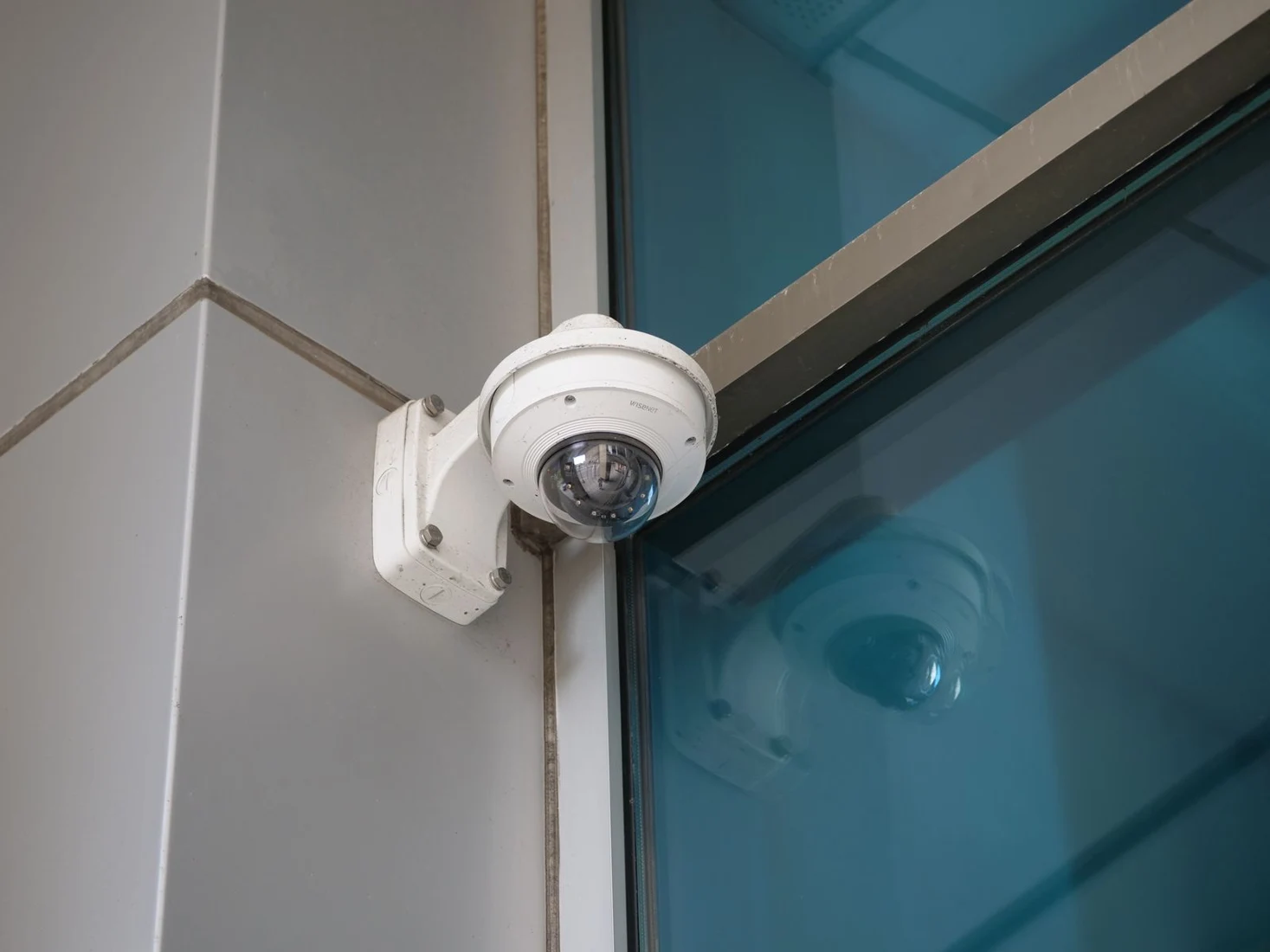
Review a night-time walk with the outside lights in their normal state. A sharp daytime picture can become an overexposed face, a dark outline or a reflection after sunset. Check the actual path to the house, rather than judging the empty scene by how bright it looks.
Look for foliage blocking the lens, spider webs near infrared lighting, reflections from a nearby wall and glare from vehicles. Clean accessible exterior lens covers only as the manufacturer recommends. Do not climb a ladder just to complete a pre-trip checklist; ask for servicing if the camera cannot be reached safely.
Check moving detail at normal playback speed, then pause it. A still car looking clear does not prove a walking person will be clear. If adjustments are needed, compare recordings after the change. More brightness or a higher resolution setting is not automatically the solution to poor night footage.
Confirm how far back you can actually go
Find the oldest playable footage from each important camera. The useful question is whether your retention covers the period between an event and the time you are likely to discover it. That may be longer than the trip if you will not review recordings immediately on return.
Do not assume every channel keeps the same number of days. Recording schedules, scene activity, picture settings and storage allocation can differ. A system that retains a quiet fortnight at home may use storage faster during building work, heavy traffic or repeated movement in view.
Check whether the system overwrites its oldest footage when storage fills or stops recording under its current configuration. Both the available space and the selected behaviour matter. A cloud plan can have a separate retention limit, and a free trial may expire while you are away.
For a fuller explanation of capacity and retention, see how many days of CCTV storage you need. Avoid changing compression and frame-rate settings at random to gain extra days. The resulting recordings still need to show useful detail.
Read storage warnings before clearing anything
Open the normal storage or device-health screen and look for a missing drive, card error, recording fault or repeated restart warning. Record the exact message and model number for support. A recorder can still show live cameras while reporting a storage problem.
For what a format or initialise message means, and when formatting is safe, read CCTV recorder says format the hard drive: what to do first.
Formatting is not a harmless diagnostic step: it can erase recordings. Save important footage first and ask the installer to confirm the right next action. Repeatedly restarting a recorder or swapping storage just before travel can also make a fault harder to diagnose.
If the recorder feels unusually hot, check from outside that ventilation openings are unobstructed and it is not covered by bags or boxes. Leave enclosures closed. Clicking noises, burning smells, damaged power leads or recurrent drive faults need professional attention rather than a last-minute reset.
Test remote playback using mobile data
Turn Wi-Fi off on your phone temporarily and use mobile data to open the normal camera app. Test both live view and an earlier recording. Restore Wi-Fi afterwards. This checks a different route from viewing while connected to the home network.
If remote viewing is slow or drops out, our guide why security cameras can slow down your home internet shows how to find the cause.
If remote access fails but local playback works, the recordings may still be safe. Investigate account access, permissions, the home internet connection and the supported remote-access method. Do not expose recorder ports or weaken router security as a quick holiday workaround.
If you are travelling overseas, check that your phone will have a usable data connection and that you can complete normal account verification. Keep recovery information securely available to you, not written on the recorder or shared in a group chat. Test any replacement phone before departure.
Local storage and remote access are separate capabilities. Reolink’s official explanation of PoE cameras without internet shows that supported local recording and viewing can remain available while internet-dependent functions are lost. That is a model-specific example, not a promise for every camera or cloud service.
Save a sample clip and play the saved file
Export a short test clip using the documented app or recorder function. Open the saved file independently, rather than playing it only inside the CCTV timeline. Check that it contains the correct camera, useful detail and the expected time period.
Some recorders offer an ordinary video format and a proprietary format requiring a manufacturer player. Find that out now. Keep the original export if a real incident occurs; an edited social-media copy or a phone recording of a monitor may lose useful information.
Check the displayed date and local time against a reliable clock, including daylight-saving settings. If the time is wrong, record the difference before asking for a correction. Time changes can complicate searches around the adjustment, so recheck playback afterwards rather than assuming the archive has disappeared.
Prepare for power, batteries and someone helping
Check rechargeable camera batteries and the condition of any approved solar charging arrangement. A solar panel reduces charging work in suitable conditions; it does not guarantee unlimited recording through shade or prolonged poor weather. Use the manufacturer’s charging instructions and test the camera afterwards.
If you have a backup power supply, ask which devices it actually supports. Keeping the recorder running is insufficient if a separate camera switch loses power. Keeping local recording running does not necessarily keep your router and internet equipment online. Runtime depends on the load and battery condition.
Give a trusted contact a clear role if you want help while away. Agree whether they will receive alerts, check the exterior from a safe position or contact your installer. Use individual, limited access where supported instead of sharing your administrator password. A phone alert does not itself arrange attendance.
Explain what they should not touch: recording schedules, storage formatting, router configuration and reset buttons. Leave the installer’s contact details and a simple description of the system. Nobody should enter a property to investigate a suspected intrusion; urgent danger requires the appropriate emergency response.
Use a departure-day pass list
- Every important camera has a recent playable test event.
- Night footage shows the intended approach.
- Old footage remains available for the period you need.
- No unresolved storage or power warning is present.
- Remote live view and playback work on mobile data.
- A sample export opens outside the camera app.
- Batteries, backup power and the contact plan have been checked.
If a check fails, record the symptom and arrange help before relying on that function. A working front-door camera does not compensate for an unrecorded side entrance. Equally, an app problem does not automatically justify replacing a recorder that still works properly.
On the day you leave, repeat one short playback check and confirm the system remains powered. Keep the test modest: the final hour before departure is a poor time for major firmware, network or storage changes. Complete necessary maintenance earlier so there is time to verify the result.
FAQ
Does a red light mean the camera is recording?
Not reliably. Lights have different meanings across models and may indicate power, infrared illumination or a connection. Use recorded playback of a known event as your check, with the model manual explaining any status indicators.
Why can I watch live video but find no recordings?
Possible causes include the selected date or filter, disabled recording, an incorrect schedule, unavailable storage or a cloud-plan limit. Check the playback source and storage status before changing settings or formatting anything.
Will cameras keep recording if the internet fails?
Some systems continue recording to a local recorder or memory card when correctly configured and powered. Cloud uploads and remote access may stop. Confirm the behaviour of your particular system rather than assuming every camera works offline.
Should I restart the system before going away?
Only follow the documented procedure if a restart is needed. It briefly interrupts operation and does not prove a fault is fixed. After any restart, check new recordings, the time and remote playback again.
How often should I check recordings while away?
Choose a manageable routine based on your property and system. A brief periodic playback check can reveal a problem that live view misses. If reliable attendance is important, discuss a response arrangement instead of depending on your availability to watch the app.
Leave with a tested system
The useful result is a small set of proven recordings and a clear plan if something fails. If playback, storage or remote access remains uncertain, SIPKO can help with home security-system maintenance and support in Melbourne. Describe which check failed so the visit can address the fault rather than start with an assumption that everything needs replacing.