

Quick answer
Do not format a CCTV hard drive until you know whether any footage on it matters. A new, empty drive normally has to be formatted (the recorder may call it initialising) before it can record. A drive that has been working and suddenly asks for a format needs diagnosing first, because formatting erases the recordings on it.
- Do it yourself, call us if stuck
- About 12 minutes
The short version
- Formatting a CCTV hard drive erases the recordings on it, so do not accept the prompt until you know whether any footage matters.
- A new, empty drive normally needs formatting (initialising) before it records. Hikvision says a new drive shows as uninitialised.
- An old drive that suddenly asks for a format needs diagnosing first. Record the message and the dates you may need.
- After any storage work, check playback and an export, not just the live picture.
On this page
- The short version
- Three situations, three answers
- What the message usually means
- What formatting does
- When formatting a new drive is fine
- An old drive asking for a format
- If playback still works, save the footage first
- If you do not need the old footage
- After the repair, check playback, not just live view
- Two examples with different answers
- FAQ
- Sources and further reading
- Get the warning assessed before you clear it
- Recommended Solutions for This Security Issue
This guide is for Melbourne homeowners and small business owners whose recorder, an NVR or DVR, shows a format or initialise message. It explains when formatting is normal, when to stop, and what to check afterwards. Menu names differ between brands and software versions, so use the manual for your exact recorder.
Three situations, three answers
The words on the screen can look the same in every case. What you should do depends on which one you are in.
If you are unsure which box fits, treat it as the red one. You can always format later, but you cannot take a format back.
What the message usually means
| What you see | What it can mean | First step |
|---|---|---|
| Uninitialised, on a drive you just fitted | Normal for a new drive. Hikvision says a new drive shows as uninitialised | Initialise it from the recorder, once you know the drive is supported |
| Format or initialise prompt on a drive that used to work | A disk, cable, power or recorder problem. The message alone does not say which | Stop. Record the message and ask whether any footage matters |
| Disk full | Often normal. Recorders can overwrite the oldest footage when storage fills, if that is switched on | Check the overwrite setting before anything else |
| No HDD or drive not found | Dahua lists a broken drive, a loose or damaged cable, a faulty port, an unsupported drive or too little power | Ask an installer to check the connections and the drive |
| Abnormal or error | A drive or recorder fault that may be getting worse | Do not format. Get advice, especially if footage matters |
What formatting does
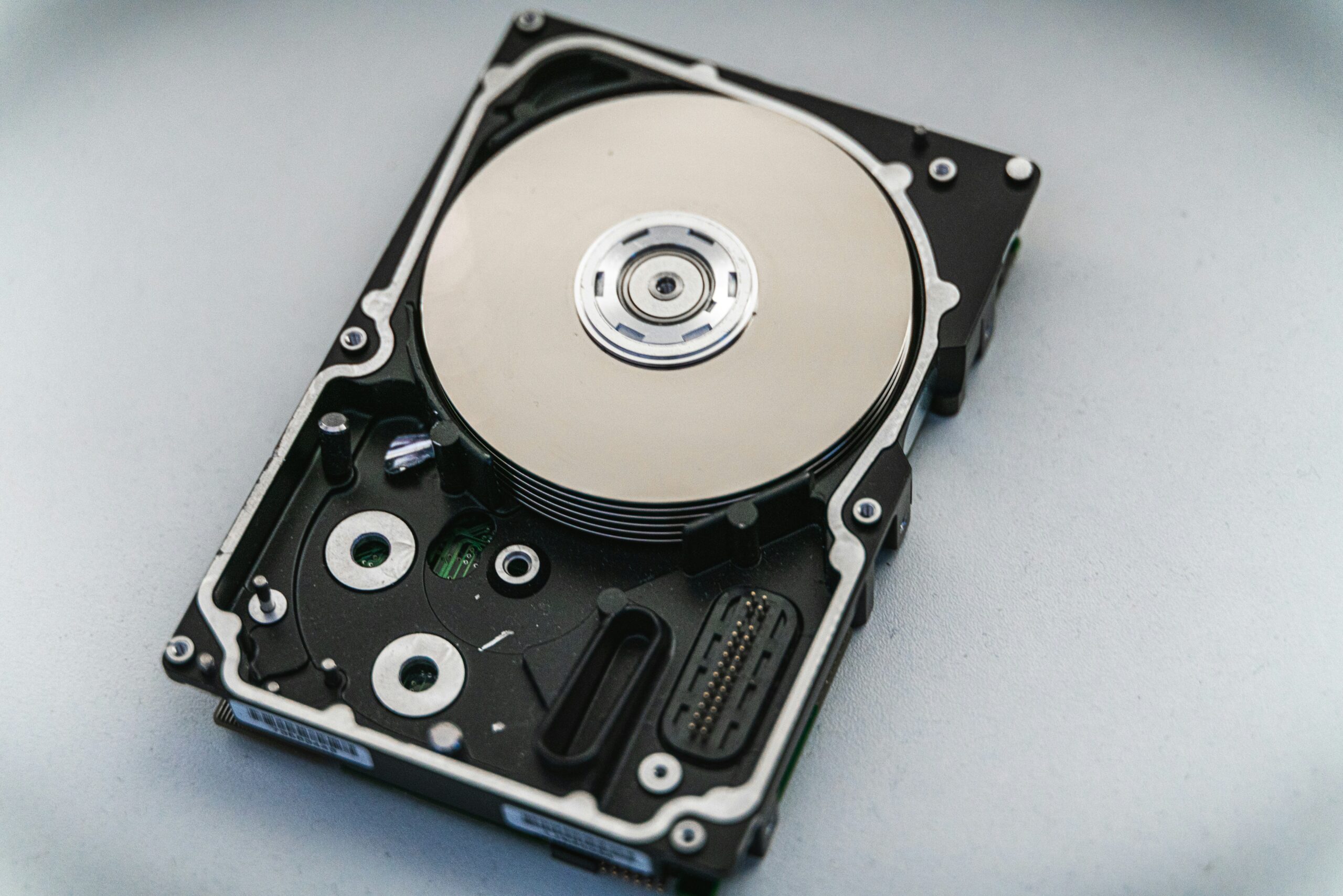
Formatting prepares storage for the recorder to use, and it removes the existing recordings from normal access. Treat it as erasing, not as a restart. Reolink says plainly that formatting will delete all recordings on the storage, and advises you to back up anything important first. Dahua’s wiki says formatting empties all the space on the drive for recordings.
Formatting is not the same as overwriting. Reolink says its devices can automatically overwrite older recordings when storage becomes full, and on supported devices you can set a retention period. A full drive can therefore be normal. It is also not the same as a factory reset, which changes settings and access, not the disk. Do not use either one casually to see which warning disappears.
When formatting a new drive is fine
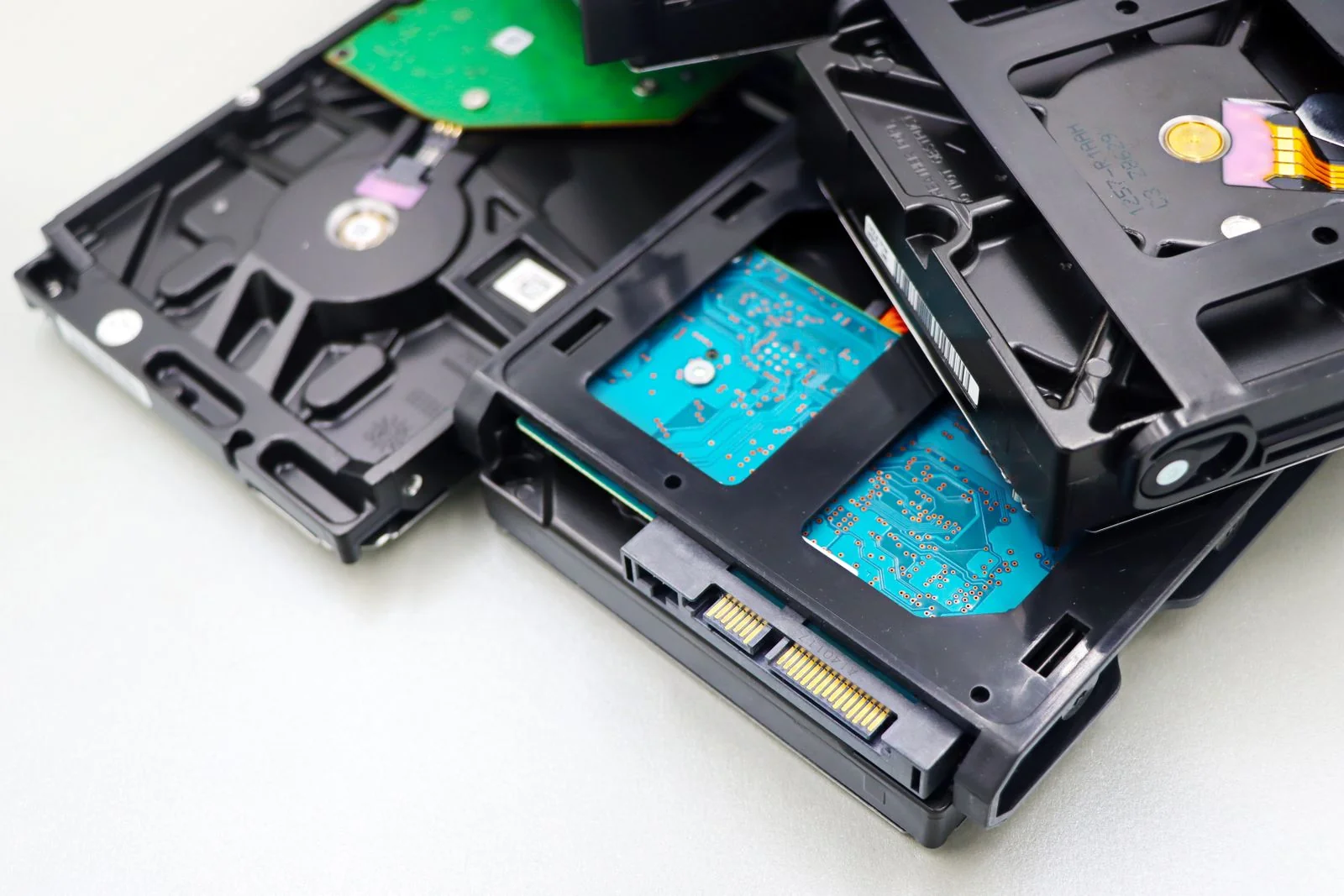
A newly fitted drive normally needs to be initialised by the recorder before it can record. Hikvision support describes the usual order: after you fit the drive and power the recorder on, the unit should ask you to initialise it during start-up. If it does not, open Storage or HDD, then Storage Devices, tick the drive that shows uninitialised, and press the format or initialise button. When it finishes, the status should read Normal.
On a Dahua NVR, the wiki describes Main Menu, Storage, HDD Manage: choose the drive, select Format, confirm Yes, then Apply and Save. It says the recorder will reboot afterwards. These pages are examples for those brands and are not a guide for every model.
- Check that the drive is supported by your recorder model, in size and type. A drive that physically fits is not always supported.
- Use a drive made for 24 hour recording rather than a basic desktop drive.
- If the recorder has several drives, select only the new one.
- If the system uses disk groups or RAID, get advice first. Changing one drive can affect more than that drive.
After the format, do more than check for the word Normal. Confirm every camera is recording, play back a new event, and test an export. A finished progress bar only shows that the format ran.
An old drive asking for a format
A surprise prompt can follow a disk fault, an interrupted write, a loose connection, an unsupported drive or another recorder problem. The message does not tell you whether the drive is failing or something else is wrong. Think back to what happened before it appeared: a blackout, a new drive, a firmware update, or a period when playback went missing. That timeline helps a technician. It does not prove the blackout caused it.
Write these down before anyone touches the recorder:
- A photo of the exact message, without passwords or private camera views.
- The recorder brand, full model and software version, if you can see them.
- The disk status and the capacity it reports on the normal storage screen.
- When the last good recording was made.
- Any dates or incidents whose footage you may need.
- Recent power cuts, hardware changes or settings changes.
If footage may matter, do not run repair tools, do not keep rebooting, and do not connect the drive to a computer that offers to initialise it. If the drive is clicking or keeps disconnecting, stop and get specialist advice. This guide is not a how-to for opening a recorder or a hard drive.
Dahua’s wiki lists the usual causes when a recorder cannot see its drive: a broken drive, a damaged or loose cable, a faulty port on the main board, an unsupported drive or too little power. It suggests checking the cables, trying another port, and checking compatibility before a format. Those checks mean opening the recorder, so they are an installer job. The same page lists formatting from a PC as a late option if the recorder cannot format the drive. Treat that as a technician decision, not a first move.
If playback still works, save the footage first
If the recorder is stable and the recordings you need can still be played, export them through the recorder’s normal export function before anything else. Pick the right cameras and a time range that starts well before the event and ends well after it.

- Open the exported files on another device and check the camera, date, time and length.
- Keep the manufacturer player if the file needs one.
- Keep an untouched copy of the export. A photo of the screen is not the video.
- If the recorder clock is wrong, write down how far off it is before you change it.
If police or an insurer needs the footage, ask them what file format and handling they want. A good export does not prove the rest of the drive is healthy, and data recovery is never guaranteed.
If you do not need the old footage
Even if you can afford to lose the recordings, find out why the warning appeared. A format does not repair a worn drive or a weak power supply. If the warning keeps coming back, do not make “just format it again” a monthly routine. Ask the installer what will be erased, whether other drives or settings are affected, and how they will prove recording works afterwards. Sometimes only the drive needs replacing. Whether to replace the cameras or the recorder is a separate question, covered in our guide to keeping or replacing an old CCTV system.
After the repair, check playback, not just live view
Cameras can show a live picture while recording is not working. After any storage work, play back a recent event, then confirm new footage keeps appearing. Where the recorder supports it, make sure storage fault alerts reach the right person, and do not assume the app passes on every recorder warning.
Free space also does not tell you how many days of footage you have. That depends on the number of cameras, picture quality, recording mode and how busy the scene is. Our guide to how many days of CCTV storage you need helps with that, and checks before a long trip gives a quick routine to confirm recording is still working.
Ask for a clear handover: what failed, what was changed, what was erased with your approval, which checks passed, and how you will recognise the warning if it returns. If your recorder is also running hot or noisy, see our NVR overheating guide.
Two examples with different answers
A planned service with a new drive. The installer fits a supported, empty drive, selects it, and gets your approval to initialise. Formatting is then part of normal setup. The next jobs are to check recording, playback and export.
A recorder that has worked for years shows the same prompt after a suspected break-in. The playback screen is blank, but the footage may still matter. The first job is preservation advice and a plan to keep recording. Clearing the warning comes later. The wording on the screen is the same as in the first example, but the right decision is the opposite.
FAQ
Eight quick answers to the questions people ask most.
Should I format my CCTV hard drive when the recorder asks?
Only if the drive is new and empty, or you are sure you do not need anything on it. If it is an old drive that worked before, stop first. Record the message and ask whether any footage may matter.
Why does my DVR or NVR say the hard drive is uninitialised?
Hikvision says a newly fitted drive shows as uninitialised until you initialise it. On an old drive that used to work, the same message can point to a fault, so diagnose before you format.
How do I format a CCTV hard drive?
Use the recorder’s own menu. On a new Hikvision drive that is Storage, then Storage Devices, tick the drive and format. On a Dahua NVR it is Main Menu, Storage, HDD Manage, Format. Menu names vary, so check your manual, and only do this when you do not need the footage.
Will formatting delete my CCTV recordings?
Yes, treat it as erasing the recordings on the selected storage and do not count on getting them back. Reolink and Dahua both describe formatting as emptying the recording space.
Does a full hard drive mean I should format it?
Not automatically. Recorders can overwrite the oldest footage when storage fills, if that is switched on. Recording can stop if it is switched off or another fault exists. Check the status and your retention needs first.
Can I format the recorder drive on my computer?
Do not use a computer prompt as a quick fix. It can destroy access to recordings, and it may prepare the drive in a way your recorder does not like. Dahua lists it only as a late troubleshooting step when the recorder cannot format the drive, so leave that to an installer.
I already clicked Format. Can the footage be recovered?
Possibly, but there is no guarantee. Stop recording and avoid more tests, then ask a specialist how to stop further writes safely. Tell them what was selected and whether the recorder has been used since.
Does a hard drive fault mean I need new cameras?
No. The drive, recorder and cameras are separate parts. Diagnose the storage first, then decide what needs replacing, if anything.
Sources and further reading
- Hikvision Support: What do I do after I install a new hard drive (new drive shows uninitialised, how to initialise)
- Dahua Wiki: NVR, Basic Setup, Format HDD (menu path, reboot, formatting empties the drive)
- Dahua Wiki: Troubleshoot, NVR, No HDD (causes and checks when the drive is not found)
- Reolink Support: Deleting footage, formatting and overwrite (formatting deletes all recordings, overwrite and retention)
The Dahua pages are several years old and the menu names may differ on newer software. Brand steps are examples, not a guide for every model. The decision diagram and the advice on footage are our own guidance from servicing recorders. Last checked 15 October 2026 by Sergi Sipko, licensed security installer, Security Adviser and Equipment Installer Licence Z47-808-30S.
Get the warning assessed before you clear it
For a Melbourne recorder or storage problem, ask SIPKO about security system repair and maintenance. Send the recorder model and the exact message, and say straight away if footage may be needed. We will tell you whether it is routine fault finding or needs a specialist recovery service before you approve anything that erases data.

Update history
- 15 October 2026: Rewrote with a three-situation diagram, a table of what each message means, steps from Hikvision, Dahua and Reolink with sources, and more FAQ answers.
- 5 October 2026: First published.
Did this fix it?
Good to hear. If we saved you a call, a short Google review helps other Melbourne homes find honest advice.
Leave a Google reviewLet us take a look. Tell us what you found and a licensed installer will help you find the cause.
Get a free quote or call 0406 432 691 Featured Ajax product
AJAX Hub 2 Plus
The advanced security panel at the heart of an Ajax system. It connects up to 200 devices.
See the Ajax system →
Featured Ajax product
AJAX Hub 2 Plus
The advanced security panel at the heart of an Ajax system. It connects up to 200 devices.
See the Ajax system →
- Licensed and insured
- Licence Z47-808-30S
- Melbourne and Mornington Peninsula
- Free onsite quote
Google reviews
What Melbourne customers say




Local help from SIPKO
SIPKO Security
Get your free onsite quote
Tell us about your property. A licensed installer will get back to you with a clear, honest answer.
- Licensed and insured
- Melbourne and Mornington Peninsula
- Mon to Sat, 8am to 6pm
The quote form opens as you scroll here.