- Do it yourself, call us if stuck
- About 12 minutes
The short version
- Set up and test every security app on the new phone before you erase the old one. Keep the old phone until the end.
- Ajax, Hik-Connect and Arlo devices follow your account, but Reolink cameras are added again with a QR code or UID.
- Dahua DMSS devices added directly to the phone should be transferred to your DMSS account first.
- Test cameras, playback, alerts and intercom, then end the old phone sessions and erase it.
On this page
- The short version
- The order that works
- What moves on its own, and what does not
- Step 1: check access before you touch anything
- Step 2: set up your camera and alarm apps on the new phone
- Move your authenticator codes first
- Step 3: test more than the live picture
- If notifications fail
- Step 4: retire the old phone
- An example: cameras pass, intercom fails
- FAQ
- Sources and further reading
- Need help completing the move?
- Recommended Solutions for This Security Issue
To move a security camera or alarm app to a new phone, set up and test each app on the new phone before you erase the old one. Some apps keep your system in an online account, so signing in is often enough. Others, such as Reolink, need each camera added again. Things that never move on their own are device entries saved only on the old phone, authenticator codes and downloaded video clips.
This guide is for Melbourne homeowners changing phones who use camera, alarm or intercom apps. It gives the order to follow, what Ajax, Dahua, Hikvision, Reolink and Arlo each need, and what to test. If you only need help adding a Dahua system to a phone, see our DMSS app setup guide.
The order that works
Keep the old phone working until the very end. It is your reference copy, and it is the easiest way to recover anything you missed.
Allow an hour for this, and do it at home on your own Wi-Fi, not at the phone shop counter.
What moves on its own, and what does not
| Item | Usually moves by signing in? | What to do |
|---|---|---|
| Ajax, Dahua DMSS or Hik-Connect account with your devices | Yes, if the devices are in your account | Sign in on the new phone and check every device is listed |
| Reolink cameras | Not by signing in alone | Add each camera again with its QR code or UID and the camera password |
| Arlo account with two-step verification | Yes, after you approve the new phone | Approve the login from your trusted old phone |
| DMSS devices added directly to the old phone | Not reliably | Transfer them to your DMSS account first |
| Two-factor codes from an authenticator app | Only if the app syncs or you transfer the codes | Move the codes and test a login before erasing |
| Clips and photos saved on the old phone | No | Copy them somewhere safe and check they open |
| Alerts and permissions | No | Switch notifications on again for each app |
| Access shared with you by someone else | Depends on the owner | Ask the owner to confirm your access |
Step 1: check access before you touch anything
The phone shop counter is a bad place to find out that an app belongs to an old email address. Give yourself time to recover a forgotten password, or to contact the person who manages your system.
Ready to move
You know the account, you can receive verification messages and you still have the old phone. Go ahead with the new phone.
Pause the wipe
You rely on automatic login, cannot receive a code, or do not know who owns the system account. Fix access first.
Old phone not available
Use the maker’s official account recovery, or ask the account owner. Do not reset the alarm or recorder as a shortcut.
Moving phones does not transfer ownership of your alarm or cameras. Do not delete a property, unbind a recorder or remove other users just to clear an error.
Make a short app list
Open the apps on the old phone and write down:
- The exact app names and the official publisher in the app store.
- The email address or number you sign in with, and proof you can still get messages there.
- Who owns the system and whether you are the owner or a shared user.
- Which properties, cameras and alarm areas should appear.
- Any separate authenticator app.
Keep passwords and recovery codes in a password manager. A screenshot of a device QR code is private information, so do not send it to a group chat or post it in a public help request.
Step 2: set up your camera and alarm apps on the new phone
Install each app from the official app store. Sign in to the same account and check which devices appear before you add anything again. An empty list often means a different account, a device saved only on the old phone, or missing shared access. It does not mean your cameras have lost their settings.
Ajax
Your Ajax system is linked to your account. When you log in on a new device with two-factor authentication on, Ajax asks for your password and a six-digit code from your authenticator app. Ajax also says a code made on a phone with a manually set clock can be rejected, so keep the new phone on automatic time. Once the new phone works, open the main menu in the Ajax app, choose Account, then Sessions, and use Terminate session for the old phone. There is also an option to end all other sessions.
Dahua DMSS
Dahua says devices added in the old version of DMSS show up in your account after you log in, and recommends transferring them to the account. On the old phone, Dahua’s own guide uses Me, Service, Transfer Local Device to Account, and Dahua’s notice describes Tools Manager, Device Transfer Tool, Transfer Local Device. The menu names differ between versions, so use the one you see. You will need your DMSS account password, and Dahua recommends deleting the local copies afterwards to avoid duplicates. This notice is a regional one, so check the current Australian version of the app.
Hikvision Hik-Connect
A camera that is already bound to another account has to be unbound before it can be added to yours. Hik-Connect says the phone and the device must be on the same local network, and you need the device password and a verification code. Do this only if you are the authorised owner. Never unbind a working camera just to fix an error on a new phone.
If the new phone uses a different Hik-Connect account, the owner can share the device instead. Hik-Connect describes this under More, then Manage Sharing Settings, where the owner picks the recipient and sets permissions such as Live View, Remote Playback and PTZ. Share with the right permissions, rather than handing over your own login.
Reolink
Reolink works differently from an account-based app. Reolink support says to add each camera to the new phone, either by having the old phone share the camera UID or QR code, or by scanning the QR code on the camera body. You choose WiFi already configured, then enter the login password you created for the camera when it was set up. The old phone is the easy place to get the UID, so do this before you erase it. If you have forgotten the camera password, Reolink points you to its separate recovery article.
Arlo
When you log in to Arlo on a new phone, Arlo sends a push notification to your trusted device that is still logged in, and you approve the new login there. Arlo says you can have up to five trusted devices. This is a strong reason to keep the old phone working until the new one is approved.
Other apps
Bosch, intercom and other brands each work a little differently. For a Bosch connection problem, see our Bosch 6000 app guide. For an intercom that rings only on the old phone, read why an intercom works indoors but not on the app.
Move your authenticator codes first
Two-factor codes are the part people forget. If you erase the old phone before the codes move, you can be locked out of the security app. Check which kind you use:
- With Google Authenticator, signing in to your Google Account on the new phone syncs your codes to it.
- Without a Google Account, the same page describes Transfer codes, then Export codes on the old phone and Import codes on the new one.
- Other authenticator apps work differently, so check that app’s own instructions.
- Test a real login on the new phone before you erase anything.
Do not switch off two-factor protection to make the move easier. If you cannot get a code, stop and use the official recovery steps. Nobody from an installer or support team should ask for your one-time codes or your email password.
If your mobile number is changing, update the recovery number on the security app and on its email account while the old number still works.
Step 3: test more than the live picture
A green connection icon is not proof that everything works. Do the tasks your household really uses:
- Open every expected camera and check the picture is live.
- Play back a recording from a known time.
- Confirm the right property, alarm areas and user permissions.
- Check a notification arrives with the app closed and the phone locked.
- Test intercom calls separately, if you have one.
- Ask another household member to confirm their own access still works.
Then switch Wi-Fi off on the new phone and repeat the viewing checks on mobile data, so you know it works away from home. Check your data allowance first and avoid long clips. Our guide on security camera app mobile data use explains what uses the most.
If notifications fail
New installs often need notification permission even when login and live view work. Check the app’s own notification settings and the phone’s settings for that app. Focus or Do Not Disturb modes and battery restrictions can also hold alerts back, and the controls depend on your phone and its software.
Compare one expected event on both phones. If the old phone gets it and the new one does not, the problem is on the new phone. If neither gets it, the cause is likely an event setting, the account or the connection, and a new phone will not fix it. Turn on only the permissions the app needs, then test again. Our security camera app not working guide covers the next checks.
Step 4: retire the old phone
Before you erase anything, copy off any clips or snapshots stored in the old apps. A clip on your recorder and a clip downloaded to the phone are two different copies. Check that the files you need open from their new place.
Next, end the old phone session in each security app, where the app offers it, without removing the property or any other users. Then follow your phone maker’s own steps. For an iPhone, Apple’s before you sell, give away or trade in guide puts the backup and transfer first, then signing out of iCloud, then Erase All Content and Settings. On Android, use your phone maker’s matching guide.
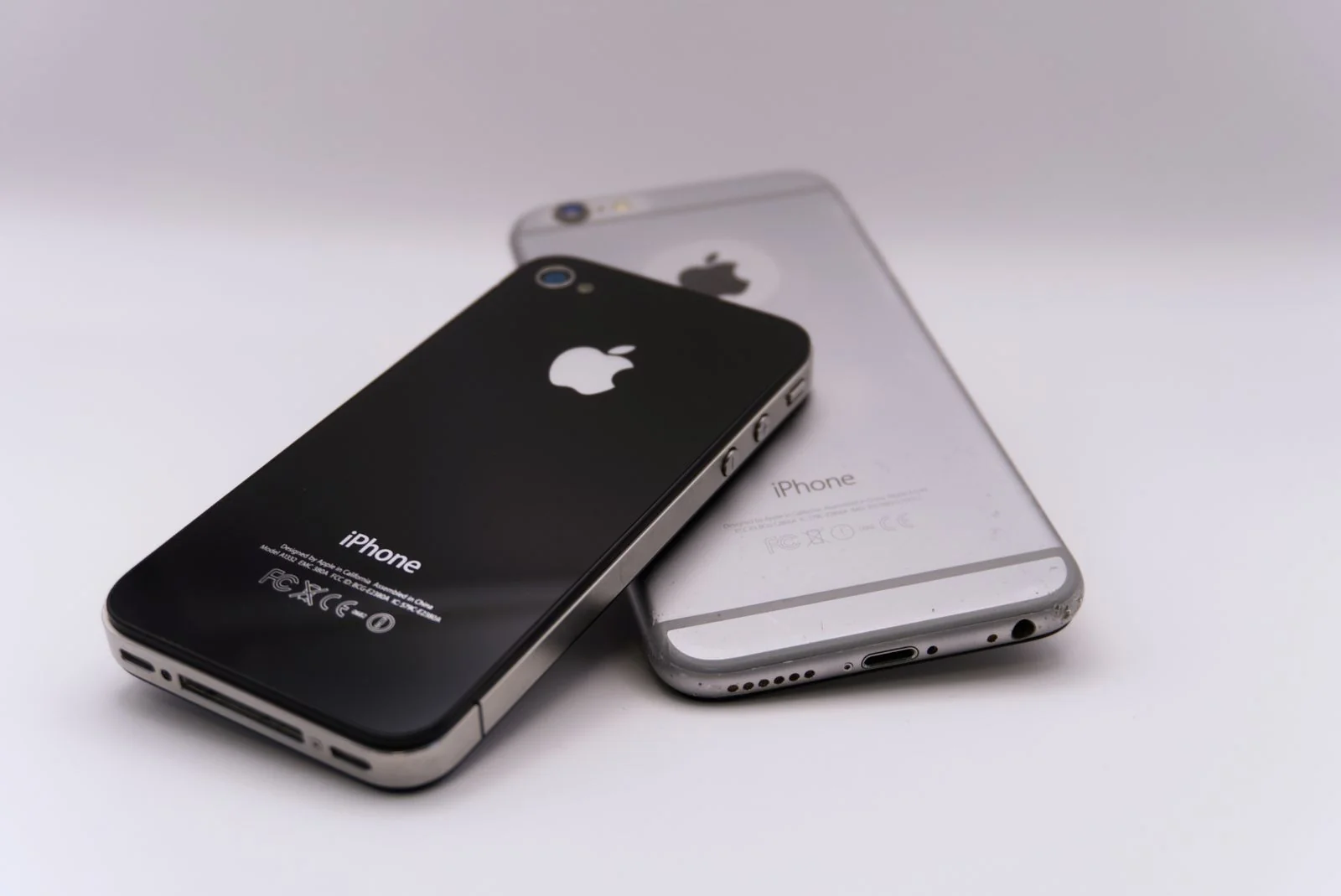
Do not leave the old phone signed in just because the new one works. Keep a short note of the app names, the account owner and your support contact, so the next move is easier.
An example: cameras pass, intercom fails
A household changes phones on Saturday morning. The camera app opens and live view works, so it looks finished. During the checklist they find the intercom rings only on the old phone, and a clip they downloaded is missing from the new one.
The sensible next step is to keep the old phone, save the clip, and look at the intercom account and its notification settings. Nothing suggests the camera recorder needs a reset. Splitting the failed task from the working ones keeps a small phone problem from turning into a whole-system reconfiguration.
If the old phone has already been erased, note what still works: the recorder screen, another family member’s app, the alarm keypad or an indoor monitor. An authorised installer can use that to recover the missing access without disturbing the rest of the system.
FAQ
Eight quick answers to the questions people ask most.
How do I transfer my security camera app to a new phone?
Install the maker official app on the new phone and sign in to the same account. If the app uses an account (Ajax, Dahua DMSS in Account Mode, Hik-Connect, Arlo), your devices usually appear. If it does not (Reolink), add each camera again with its QR code or UID and password. Then move your authenticator codes, switch on notifications and test before you erase the old phone.
Do Reolink cameras move to a new phone automatically?
Reolink support describes adding each camera to the new phone, by sharing the UID or QR code from the old phone or scanning the code on the camera, and entering the camera password. Collect these from the old phone before you erase it.
Will copying my phone move every security app?
Not reliably enough to skip testing. An app can reinstall while its login, local device entries, permissions or downloaded clips still need attention. Check each service on the new phone before you erase the old one.
Will my cameras stop working if I wipe the old phone first?
The cameras and recorder keep running. What you lose is your way in: saved logins, local device entries, authenticator codes and any downloaded clips. If your devices are in your account and you can sign in, you can get back in. If not, recovery can be slow.
Can I keep both phones working during the change?
Often, but session limits and account rules differ by app. Keep the old phone as your reference, and do not share administrator logins to get around a limit.
Do I need to reset my cameras when I change phones?
No. Start with the app account and the devices linked to it. A new phone alone is no reason to reset a camera or recorder.
What if I am moving from iPhone to Android, or the other way?
Check the app maker supports the new platform and install its official app. Then recheck account access, authenticator codes, permissions, alerts and downloaded clips. A general phone transfer tool does not copy every app setting across platforms.
What should I send an installer if the move fails?
Send the app name, the phone types, the system model if you know it, the exact error and which tests passed. Say whether anyone else still has working access. Keep passwords, recovery codes and device QR codes out of messages.
Sources and further reading
- Ajax Systems: How to secure your Ajax account (login on a new device, six-digit code, time settings)
- Ajax Systems: How to log out of the account on another device (Account, Sessions, Terminate session)
- Dahua: DMSS upgrade 2026, user account registration (Account Mode date, local device transfer)
- Dahua Wiki: transfer a locally added device to your DMSS account
- Hik-Connect help: unbind a device from its original account
- Reolink Support: How to add Reolink NVRs and cameras to a new phone
- Arlo Support: What is a trusted device
- Hik-Connect help: share a device with others
- Google: Get verification codes with Google Authenticator (sync and transfer codes)
- Apple Support: What to do before you sell, give away or trade in your iPhone
Menu names change between app versions, so follow what you see in the current app. The order of steps and the checklists are our own guidance from helping customers move apps. Last checked 15 October 2026 by Sergi Sipko, licensed security installer, Security Adviser and Equipment Installer Licence Z47-808-30S.
Need help completing the move?
If you are unsure which account controls your system, or something still fails after these checks, ask SIPKO about security system repair and maintenance. Tell us you are changing phones and want your existing access checked. The aim is a tested handover, with clear ownership and everyday functions working, before the old phone leaves your hands.

Update history
- 15 October 2026: Added Reolink, Arlo and Hik-Connect sharing steps from the makers, a direct answer on how to transfer a camera app, and sharper title.
- 15 October 2026: Rewrote with a four-step order, brand-specific steps for Ajax, Dahua DMSS and Hik-Connect with sources, a table of what moves, and more FAQ answers.
- 5 October 2026: First published.
Did this fix it?
Good to hear. If we saved you a call, a short Google review helps other Melbourne homes find honest advice.
Leave a Google reviewLet us take a look. Tell us what you found and a licensed installer will help you find the cause.
Get a free quote or call 0406 432 691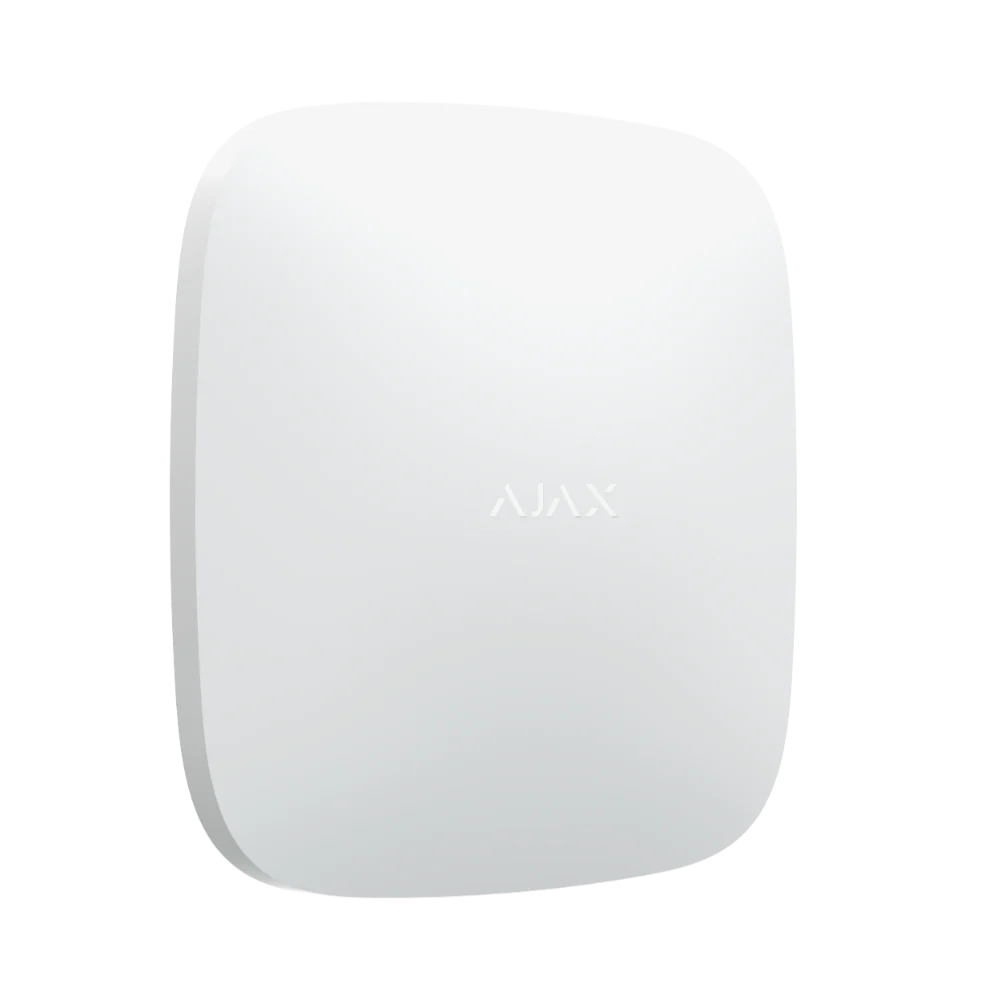 Featured Ajax product
AJAX Hub 2 Plus
The advanced security panel at the heart of an Ajax system. It connects up to 200 devices.
See the Ajax system →
Featured Ajax product
AJAX Hub 2 Plus
The advanced security panel at the heart of an Ajax system. It connects up to 200 devices.
See the Ajax system →
- Licensed and insured
- Licence Z47-808-30S
- Melbourne and Mornington Peninsula
- Free onsite quote
Google reviews
What Melbourne customers say




Local help from SIPKO
SIPKO Security
Get your free onsite quote
Tell us about your property. A licensed installer will get back to you with a clear, honest answer.
- Licensed and insured
- Melbourne and Mornington Peninsula
- Mon to Sat, 8am to 6pm
The quote form opens as you scroll here.