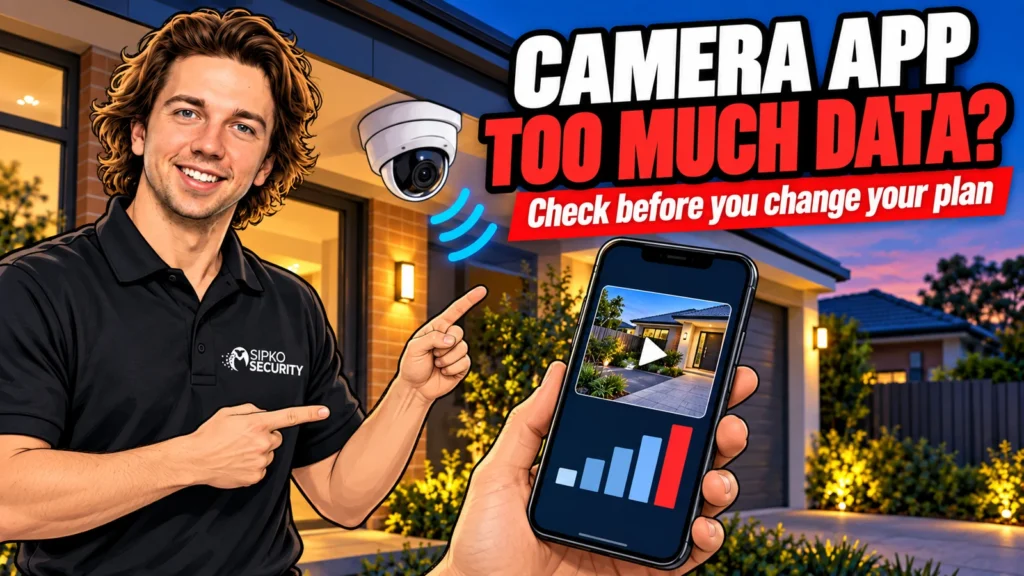
Is your security camera app using too much mobile data, or does the bill simply look higher than expected? Start by checking the app’s measured usage over the same dates as your mobile plan. Then compare how long you watch, how many cameras you open and which video quality you use.
You usually do not need to lower the quality of your recorded evidence to make occasional phone checks more economical. On systems with separate recording and viewing streams, those are different decisions. The aim is to find where the data goes while keeping the checks and alerts you actually need.
First, work out which data allowance is being used
Three separate connections can be involved. Your phone uses its mobile allowance when it receives video over a cellular network. Your home’s internet connection sends video out when you view remotely. A camera with its own SIM, or a home router using mobile broadband, can also consume a separate mobile allowance at the property.
These are not interchangeable. A camera connected to your home Wi-Fi does not mean your phone is on Wi-Fi when you watch from work. Equally, connecting the phone to Wi-Fi at a cafe may save its allowance while the camera’s SIM still supplies the video. Check which account has the warning before changing anything.
Local recording to a recorder or supported memory card is another activity again. It does not automatically mean every recorded minute is being downloaded to your phone. Cloud recording, remote viewing and automatic downloads may create other traffic, depending on the system and its settings.
Phone allowance
Check the camera app in your phone’s mobile-data usage screen.
Property connection
Check the router or camera SIM account if the warning belongs to the installation.
Recording storage
Check the recorder separately; storage capacity is not a mobile-data allowance.
Check the evidence on your phone
On iPhone, open Settings and look for Cellular or Mobile Data. Find the camera app and note its total and the period covered. The counter may not match your billing month. Apple’s cellular-data guide explains per-app totals, resetting statistics and restricting cellular access. Record the starting figure before you reset anything.
On Android, search Settings for data usage, then open the app breakdown for the SIM you use. Menus vary between manufacturers. Google’s Pixel data-usage guidance explains selecting a period and setting warnings. Use your phone maker’s instructions if the screens differ, and compare the result with your provider’s account because measurement can vary.
Take a screenshot for your own records showing the date range and camera-app total. Do not post account numbers or private notifications publicly. If the app used little data during the billing period, investigate other apps, tethering or another SIM before assuming CCTV caused the increase.
Why a few quick checks can add up
Video usage depends heavily on bitrate and viewing time. Higher resolution may contribute, but megapixels alone cannot tell you the data total. Compression, frame rate, scene activity, stream settings, audio and the app’s behaviour all affect what travels across the connection.
For a planning example, a stream averaging 1 megabit per second uses roughly 75 megabytes during ten minutes: 1 × 600 seconds ÷ 8. At 4 megabits per second, that same viewing time is roughly 300 megabytes. These are arithmetic examples, not promised DMSS, Hik-Connect or other app consumption figures, and they exclude additional traffic.
At the first example rate, ten minutes every day for thirty days is about 2.25 gigabytes. Several family members viewing from their own phones will each use their own connection. Opening a multi-camera grid can also increase traffic compared with viewing one channel, although apps may change stream quality automatically.
The useful question is therefore not whether the camera is 4MP or 8MP. It is which stream the phone receives and how long it receives it. A high-resolution camera watched briefly at a lighter viewing setting may use less data than a lower-resolution camera left streaming for hours.
Reduce viewing traffic before changing recording quality
Look for the app’s viewing-quality control. Depending on the app and recorder, labels may include main stream, substream, HD, clear, fluent or standard. These labels are not universal. Ask the installer which option is the lighter live-view stream on your particular system.
If your whole household slows down when you open the cameras, read why security cameras can slow down your home internet.
For a quick check that a gate is closed or a delivery arrived, a lower-bandwidth view may be sufficient. Switch to greater detail when you need to inspect something. If the image becomes too unclear for the task, saving data has gone too far; choose the lowest setting that still answers your question.
Do not change the recorder’s main encoding settings simply because a phone warning appeared. That could reduce the quality of future recordings. Ask whether the viewing stream can be adjusted independently, and confirm afterwards that recorded footage still has the required detail and frame rate.
If you use Dahua equipment and are still establishing access, the DMSS setup guide covers that separate task. Once access works, check the stream selected for everyday viewing rather than repeatedly deleting and adding the device to try to reduce data use.
Look beyond the live-view screen
Playback is video too. Scrubbing through several hours remotely, opening repeated event clips or downloading a long recording can use much more data than checking one live image. For a non-urgent export, use a trusted Wi-Fi connection and choose the relevant time window rather than downloading everything.
An event notification and the clip you open from it are also different. A brief text alert generally involves far less content than video, but notifications may contain images or previews. Avoid claiming that all alerts are free of data. Review actual usage and the notification options your app offers.
Leaving live view open on a stand, tablet or spare phone can turn an occasional check into sustained streaming. Finish the viewing session when you are done. If the app continues to register substantial traffic while idle, note the background usage and seek app-specific support instead of guessing which security functions to disable.
For a family, agree on a simple routine: open the relevant camera, check what matters, then stop viewing. You do not need everyone watching the same delivery for ten minutes. Keep account permissions appropriate; do not share one password just to make the routine easier.
Wi-Fi does not always mean zero cellular use
A Wi-Fi symbol alone does not prove that cellular data can never be involved. Phones may use assistance features when Wi-Fi performs poorly. Apple’s current Connectivity Assist guidance explains the newer setting that replaces Wi-Fi Assist on supported software, along with exclusions. Older software may still show the earlier name.
Check the option for your actual phone and software version rather than following an old screenshot. During a measurement test, verify the network being used. A weak signal at the back of the house or in the driveway can make an assumed Wi-Fi test less useful.
Be careful with blanket restrictions. Disabling mobile data for the camera app prevents its normal cellular access when you leave Wi-Fi. Data-saver or background restrictions may also affect some app functions. Test the alerts and remote access you rely on after any change, rather than discovering the effect while away.
Overseas travel adds another variable. Check roaming terms before viewing or downloading footage abroad. A hotel Wi-Fi network, phone roaming plan and the internet service at your Melbourne home are separate connections with separate limits. No camera setting can override the terms of your mobile plan.
Run a short, repeatable comparison
Choose a time when no incident needs attention. Note the phone’s camera-app counter, then view one camera for a short fixed period on mobile data. Record the quality setting and duration. End the session and allow the usage counter to update before recording the difference.
Repeat for the lighter viewing option, keeping the camera and duration the same. Do not use the difference as an exact monthly forecast: scene movement and encoding vary. It is a practical comparison that shows whether a simple viewing change makes a meaningful difference on your equipment.
- Confirm the billing dates and which SIM allowance is affected.
- Note the camera app’s starting and ending usage.
- Compare one camera at two viewing-quality settings.
- Keep the recorder’s evidence settings unchanged during the test.
- Check playback and export habits separately.
- Test useful notifications after changing any data restriction.
Write the result in ordinary terms, such as “one camera, five minutes, lighter live view, approximately this much data”. Repeat on another day if the difference is small. A measured result is more useful to an installer than “the app eats data”, and it avoids a larger mobile plan becoming the first response.
When settings help, and when you need support
If the figures rise mainly during long viewing sessions, shorter checks and a suitable viewing stream are sensible first steps. If traffic increases without viewing, gather the app version, phone model, date range and background-use figures. Check for legitimate app updates and contact the app provider or installer with that evidence.
Just bought a new phone? Switch notifications on and test the apps on mobile data as part of moving your security apps to a new phone.
If all remote video is slow, the issue may involve the property’s upload capacity, cellular reception or stream configuration as well as data limits. Do not open router ports, disable security protections or lower every camera’s recording quality as a general fix. A diagnosis should separate connection quality from the amount of data transferred.
If the recurring cost concerns cloud storage rather than mobile data, SIPKO’s guide to security cameras without monthly fees addresses that different decision. A system can have local recording and still use your phone’s allowance when you watch away from Wi-Fi.
FAQ
Five practical answers to the questions that matter next.
Does my camera use my phone’s data all day?
Not simply because it is recording. Phone usage depends on what the app transfers, including viewing, playback, downloads and background activity. Check the app’s measured total instead of treating the recorder’s daily recording time as phone streaming time.
Will a lower live-view setting make my recordings blurry?
Not necessarily. Many systems provide separate viewing and recording streams. Confirm which setting you are changing, and check recorded footage afterwards. Do not alter the main recording stream just to make the phone preview lighter.
Why did I use mobile data while connected to Wi-Fi?
Your phone may have used a connection-assistance feature or lost usable Wi-Fi. Check your software’s network settings and the app’s usage for that period. Do not assume every camera app behaves the same way with these features.
Should I turn off camera notifications to save data?
Start with video-viewing habits and downloads. Turning off useful alerts may remove the reason you installed the system. Review image or video previews where supported, then test that the notifications you need still arrive.
How many gigabytes should I allow for remote viewing?
There is no reliable universal allowance. Measure your own stream and typical viewing time, then leave room for playback and downloads. Your provider’s usage records are the best check against the plan you actually pay for.
Make the next check a useful one
Before changing your plan, collect a week’s sensible usage notes and identify the stream you normally watch. If you need help distinguishing viewing settings from recording settings, ask SIPKO about security-system maintenance and support. The useful outcome is clear remote viewing, worthwhile recordings and a data allowance you understand.