Uniview CCTV Takeover & Reconfiguration in Melbourne
Bought, leased or taken over a Melbourne property with Uniview (UNV) CCTV already installed? SIPKO can audit the NVR and cameras, verify authorised local and EZView access, check recording and HDD health, review network and notification settings, restore remote access when the installed recorder and authorised cloud configuration allow it, then complete a secure handover while retaining equipment that passes the audit.
If the audit identifies a failed camera, NVR, HDD, PoE port or cabling fault, that work can continue through Uniview CCTV Repair & Maintenance in Melbourne.
What a Uniview CCTV Takeover Includes
A Uniview (UNV) CCTV takeover is an audit and controlled handover of an existing system. SIPKO identifies the recorder and cameras, verifies authorised local and EZView access, checks recording, HDD health, camera condition, network connectivity and supported notifications, then reconfigures settings available on the installed recorder and authorised EZCloud setup and confirms the intended users and remote access. Hardware faults are separated from takeover work and routed to repair when required.
When a Uniview CCTV Takeover Makes Sense
A takeover is useful when the CCTV system belongs with the property but the current owner or occupier did not configure it and cannot confidently confirm who has access, whether it is recording correctly or how remote viewing is set up.
The Uniview System Came With the Property
You may have inherited the recorder and cameras from a previous owner, tenant, property manager or installer without a clear record of users, passwords, EZView sharing or recording settings.
For a broader commercial-security handover checklist, see what to do with an existing security system after taking over a commercial property .
The System Changed After a Router, ISP or Management Change
Cameras may still record locally while EZView remote viewing, notifications or recorder connectivity stop working after a router, internet service, network or management change.
What We Need Before Taking Over the Existing UNV System
The safest takeover starts by establishing authority, preserving any footage that matters and understanding the current recorder, account and network state before settings are changed.
Authorised Property and Recorder Access
SIPKO needs authorised access to the property and the Uniview NVR or recorder. If a monitor, mouse or locked equipment cabinet is part of the existing setup, access to those items may also be required for local checks.
Known Local and EZCloud Details
Provide any known NVR administrator details, EZCloud account information used with EZView, previous installer notes and the recorder model. Missing credentials do not automatically prevent an assessment, but they can change the supported recovery path.
Router and Network Information
Tell SIPKO if the router, ISP, network range or property management recently changed. That history helps separate a cloud-access problem from local recording, addressing, gateway or DNS issues.
Footage That Must Be Preserved
If footage from a particular date or incident may be important, identify it before the visit. Recording and playback should be checked before any reset, HDD change, factory-default action or other disruptive reconfiguration.
What We Check Before Reconfiguring an Existing Uniview System
The audit identifies what is installed, what works and what still needs attention.
NVR / Recorder
Identify the Uniview NVR or recorder, connected channels and current recorder status.
Cameras
Confirm channel stability and camera connectivity, review PoE or network status where relevant, and check usable coverage, focus and day/night image quality at important areas.
Recording & HDD
Test recent playback, recording schedules and recorder time, then review HDD status, warnings and available storage so a live image is not mistaken for reliable recording.
Local Users
Review recorder administrator access and other local users separately from EZCloud accounts used by EZView.
EZView Access
Determine device registration, sharing and authorised remote-access requirements.
Network & Firmware
Check the recorder’s IP configuration, gateway, DNS and internet connectivity, record the current firmware version, and only consider a Uniview-provided update that is intended for the exact installed model.
Notifications
Review supported event and push-notification settings, confirm which alerts are actually required, and test notification behaviour after authorised EZView access and network connectivity are established.
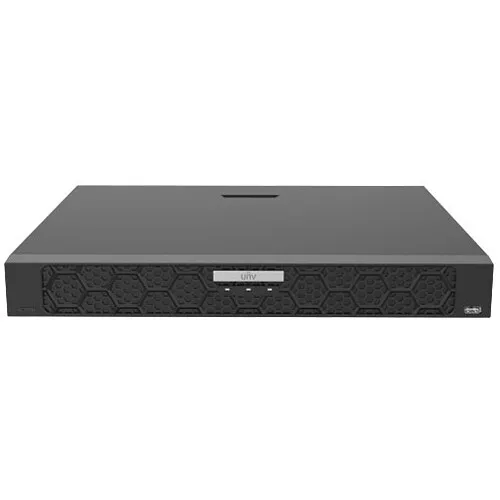
Check the Uniview NVR Before Relying on the Cameras
Seeing live video does not prove that usable footage is being stored. A takeover audit should confirm recording, playback and storage independently. If live view works but recent playback is missing, the problem may be the recording schedule, recorder time or storage rather than the camera itself.
- Confirm required camera channels are online.
- Test recent playback.
- Review recording schedules and recorder time.
- Check available HDD or storage status and warnings.
- Compare available storage with the property’s retention needs.
- Separate configuration problems from hardware faults.
Local NVR Administrator Access and EZCloud Access Through EZView Are Separate
The recorder’s local administrator account controls the NVR itself. EZView app access and the recorder’s EZCloud registration or sharing are separate cloud-side controls. Having the NVR administrator password does not automatically provide control over the account that previously registered or shared the device.
Local Recorder Access
SIPKO can review local administrator access, additional recorder users and the configuration available directly through the Uniview recorder.
EZCloud Registration & Sharing Through EZView
Where the authorised current user controls the relevant EZCloud account accessed through EZView, existing device sharing and user permissions can be reviewed.
If the recorder is still registered to another account, a Uniview-supported unbinding or account-recovery workflow may be required before the device can be added to the authorised account. SIPKO can assess the installed recorder and identify the supported path without treating local admin access as proof of cloud-account control.
Restore Remote Viewing After Router or Internet Changes
A Uniview recorder may continue recording locally even when EZView remote access stops after a router, ISP or network change. Local recording and remote access should therefore be tested separately. If the NVR is recording locally but EZView cannot connect, the likely fault path is network or cloud access rather than the camera channels.
- Confirm the recorder is reachable on the local network.
- Review DHCP or static addressing, subnet, gateway and DNS settings.
- Check internet connectivity and EZCloud status where remote access is required.
- Reconnect authorised EZView access when the installed recorder and cloud configuration allow it.
- Test remote live view and playback independently from local recording.
- Review and test supported event and push-notification settings.
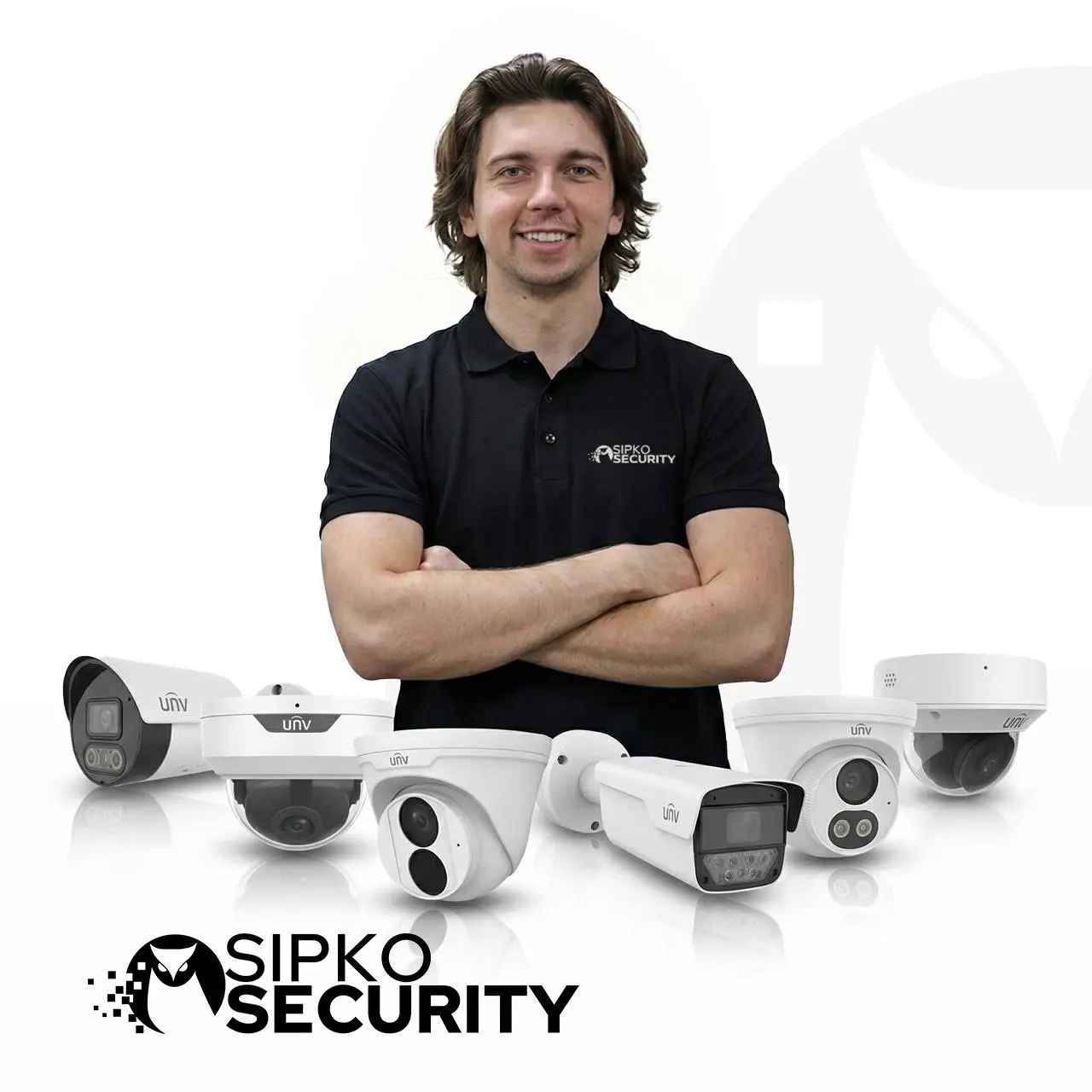
Keep Working Uniview Equipment Where It Still Meets the Site’s Needs
A takeover does not require wholesale replacement. Existing equipment can remain in service where it is reliable, compatible and still provides suitable recording and coverage.
Keep the existing equipment when it still works
- Cameras provide suitable coverage and image quality.
- Recording and playback are reliable.
- Storage is healthy and sufficient.
- Local and EZView access can be secured appropriately.
- Network problems can be corrected without replacing hardware.
Change equipment when there is a clear reason
- A recorder, HDD or camera has failed.
- Important channels are unreliable.
- Image quality no longer meets the property’s needs.
- Storage capacity is insufficient.
- Older hardware cannot support the required configuration.
What Secure Handover Includes After Reconfiguration
The goal is not simply to make the cameras appear online. The handover should leave the authorised owner or occupier knowing which access is active, whether recording works and what, if anything, still requires repair or upgrade.
Local Users and Administrator Access
Confirm the intended administrator and other required local recorder users. Obsolete local users are reviewed and removed or changed where authorised and technically supported.
EZCloud Registration and Sharing Through EZView
Confirm the authorised EZCloud account state used with EZView, review device sharing and test remote access on the intended user’s device after registration issues have been resolved.
Recording, Playback and Notifications
Recheck live view, recent playback, recording schedules, recorder time, HDD status and the supported notifications that the customer intends to use.
Remaining Issues Are Separated Clearly
Failed cameras, HDD faults, cabling, PoE problems, insufficient storage or unsupported hardware are identified separately so the customer can distinguish completed takeover work from repair or upgrade work.
How Uniview CCTV Takeover & Reconfiguration Works
Identify
Confirm the recorder, cameras, storage, firmware version, network and existing access.
Audit
Test recording, playback, camera channels, HDD status and network operation.
Secure & Reconfigure
Review local users, EZView device registration or sharing, remote access and network settings.
Hand Over
Confirm intended local and EZView access, re-test recording, playback and required notifications, then identify any remaining repair or upgrade work separately.
What Affects the Cost of a Uniview CCTV Takeover?
SIPKO quotes Uniview takeover and reconfiguration work according to the installed system and the access problem that needs to be resolved. The scope can be straightforward when the NVR, cameras and authorised account access are already available, or larger when the system has unknown credentials, old account registration, network changes, failed storage or hardware faults.
Typical Cost Factors
- Number of recorders and camera channels.
- Whether authorised local administrator access is available.
- Whether the recorder is registered to an existing EZCloud account.
- Router, ISP or network changes that require reconfiguration.
- Recording, HDD, camera, PoE or cabling faults found during the audit.
- Whether remote viewing, sharing and notifications need to be rebuilt or tested.
Quote Before Unnecessary Replacement
Working Uniview equipment does not need to be replaced simply because the property changed hands. The takeover audit identifies what can be retained and separates reconfiguration from any repair or upgrade work that may be required.
What May Need a Separate Recovery, Repair or Upgrade
A takeover can re-establish authorised control and correct supported configuration issues, but it cannot make failed or inaccessible components healthy. Some findings require a separate manufacturer-supported recovery path, physical repair or replacement.
Account or Access Limitations
- The recorder is still registered to another EZCloud account.
- The authorised customer does not have the information required for the supported recovery path.
- The installed recorder or firmware does not provide the required function.
Hardware and Infrastructure Limitations
- Failed HDD, NVR, camera or PoE hardware.
- Damaged or unreliable cabling.
- Insufficient storage for the required recording retention.
- Older or incompatible equipment that cannot support the required configuration.
Uniview CCTV Takeover & Reconfiguration FAQ
Can you take over a Uniview CCTV system installed by another company?
Is the Uniview NVR administrator account the same as EZCloud access through EZView?
Can previous users or the previous owner be removed from EZView?
What if I do not know the Uniview administrator password?
Will you check whether the Uniview CCTV system is actually recording?
Can existing Uniview cameras and recorders be reused?
What should I prepare before a Uniview CCTV takeover visit?
What does secure handover include after reconfiguration?
Uniview CCTV Takeover by SIPKO Security
Existing Uniview (UNV) CCTV systems in Melbourne can be assessed for recorder and camera condition, recording, HDD health, authorised local access, EZCloud account state used with EZView, network configuration, notifications and practical reuse of existing equipment.
Private Security Business Licence — Z93-206-80S
Cable Registration — T58117
ACN — 695 604 801
ABN — 23 695 604 801
Last reviewed: 21 September 2026
Need Control of an Existing Uniview CCTV System?
SIPKO can audit the existing system, establish authorised access, check recording and remote viewing, reconfigure settings available on the installed recorder and authorised EZCloud setup and identify only the repairs or upgrades that are actually required.
