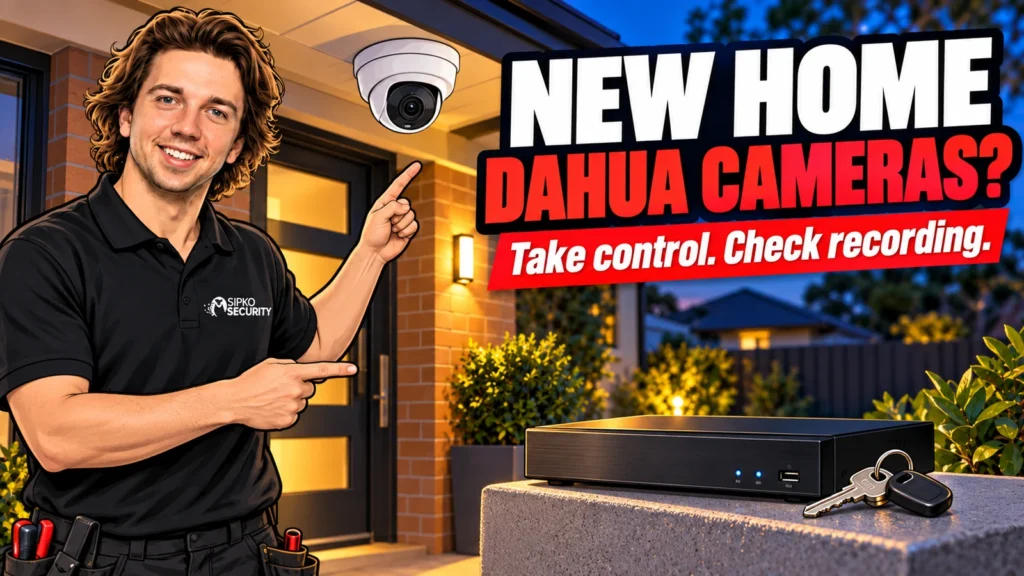
Buying a house with Dahua cameras can save you starting from scratch, but the equipment is only useful when you control access and know it records properly. Arrange a documented handover, identify the recorder, review the app account and test playback. A live picture on the seller’s phone is not a completed handover.
You do not need to replace everything on moving day. First establish ownership, access and the condition of the installation. Then decide which equipment can stay and which faults or coverage gaps need attention. That order avoids paying for new cameras when the real problem is a missing password or untested recording drive.
Ask for a handover before the keys change hands
Ask the seller or agent for an equipment list, the installation invoice, the installer contact and available user instructions. Confirm what is included with the property: cameras, recorder, storage, power supplies and any network equipment supporting CCTV. Do not assume a router, monitor or subscription will remain because it was present at inspection.
Arrange for the authorised owner to demonstrate the system while there is still time to resolve missing information. Ask to see each camera, recorded playback and the account used for remote access. Keep the process within the agreed property handover; do not access someone else’s cameras or recordings without authority.
Request a secure transfer of the information needed to manage the system. A seller’s personal email password is not an appropriate handover item. The goal is your own authorised control of the installation, supported by the correct account-transfer or unbinding process where needed.
Ownership
Confirm who controls the recorder and any linked DMSS account.
Recording
Play back a recent event from each important camera.
Ongoing support
Keep the equipment list, service contact and recovery arrangements together.
Identify the recorder, not just the camera brand
Photograph safely accessible external labels and record the recorder’s exact model. Dahua installations may use an NVR for network cameras or an XVR/DVR for compatible coaxial systems. The connection type affects replacement options, so avoid assuming all cameras are PoE simply because the recorder says Dahua.
The recorder and cameras may also be different ages or brands. List the camera locations and any model details available in the handover records. Do not climb a ladder or remove cameras just to read a label; a service visit can gather inaccessible information safely.
Find the recorder’s normal viewing location, power supply and connection to the home network. Ask which equipment must remain powered. A cupboard full of cables can include several unrelated services, so label things only after their purpose is confirmed. Unplugging an unfamiliar adaptor can interrupt recording or another system.
Keep full serial numbers and QR codes private. They may be relevant to remote registration or support. Share them directly with your chosen technician when required, rather than including them in public property photos, marketplace listings or a social-media request for help.
Separate the recorder password from DMSS ownership
The local recorder login and the DMSS app account are different layers of access. Knowing one password does not necessarily give you ownership of the other. A system may also have been added locally in an app or bound to an account, so the handover must reflect how it is actually configured.
Dahua’s DMSS device-removal guidance distinguishes account-bound and locally added devices. That is why “the seller deleted the app” is not enough evidence that all previous access has been removed. Ask for the appropriate process for the installed device and current app version.
Where a device is bound to another account, ask the current authorised owner to cooperate with the supported transfer or release process. If they cannot, use the installer or Dahua’s official support route with proof of ownership. Do not use unofficial unlock services or assume a factory reset will settle account ownership.
Dahua’s official DMSS appeal guidance explicitly separates unbinding from password reset. Its example uses a particular app version. Treat it as evidence of that distinction, and have the current Australian support process checked rather than expecting identical screens or a guaranteed completion time.
Give the new household its own access
Once ownership is established, arrange a supported change to the recorder credentials and review local users, app users, shared devices and recovery details. The authorised owner should enter new private credentials. An installer can explain the process without retaining a household password unnecessarily.
Review previous access deliberately. Removing a user from one screen does not prove that every other login or sharing route has been addressed. Ask for a record of what was checked and what legitimate service access, if any, remains by agreement. Avoid relying on a verbal assurance that “nobody else uses it”.
Use separate authorised users where supported rather than giving every family member the administrator password. Dahua’s DMSS overview describes owner-controlled sharing with selectable permissions. Confirm the actual permissions available on your device, including who can view, receive alerts or change settings.
Set recovery contact details that belong to the new owner and store the equipment record securely. Also ask how to remove a lost phone and how a future owner would take over. A good handover leaves you able to manage access later, without depending on the seller’s personal account.
Prove that footage is being recorded
Start with the local recorder display if one is available. Check each camera’s live picture, then open playback from earlier that day. Confirm the date, time and camera name. A live picture proves a video feed is available; it does not prove the drive is healthy or the recording schedule is correct.
Use an agreed, harmless test activity such as walking through your own entrance area. Note the time, then find and replay that moment. Check whether the picture provides the detail you need at the actual viewing distance. A broad view of the garden may not identify someone at a distant gate.
Repeat after dark for important entrances and vehicle areas. Reflections, nearby lights, insects, foliage and a dirty lens can affect a night image differently from daytime. Do not accept a daylight demonstration as proof that every camera is useful throughout the night.
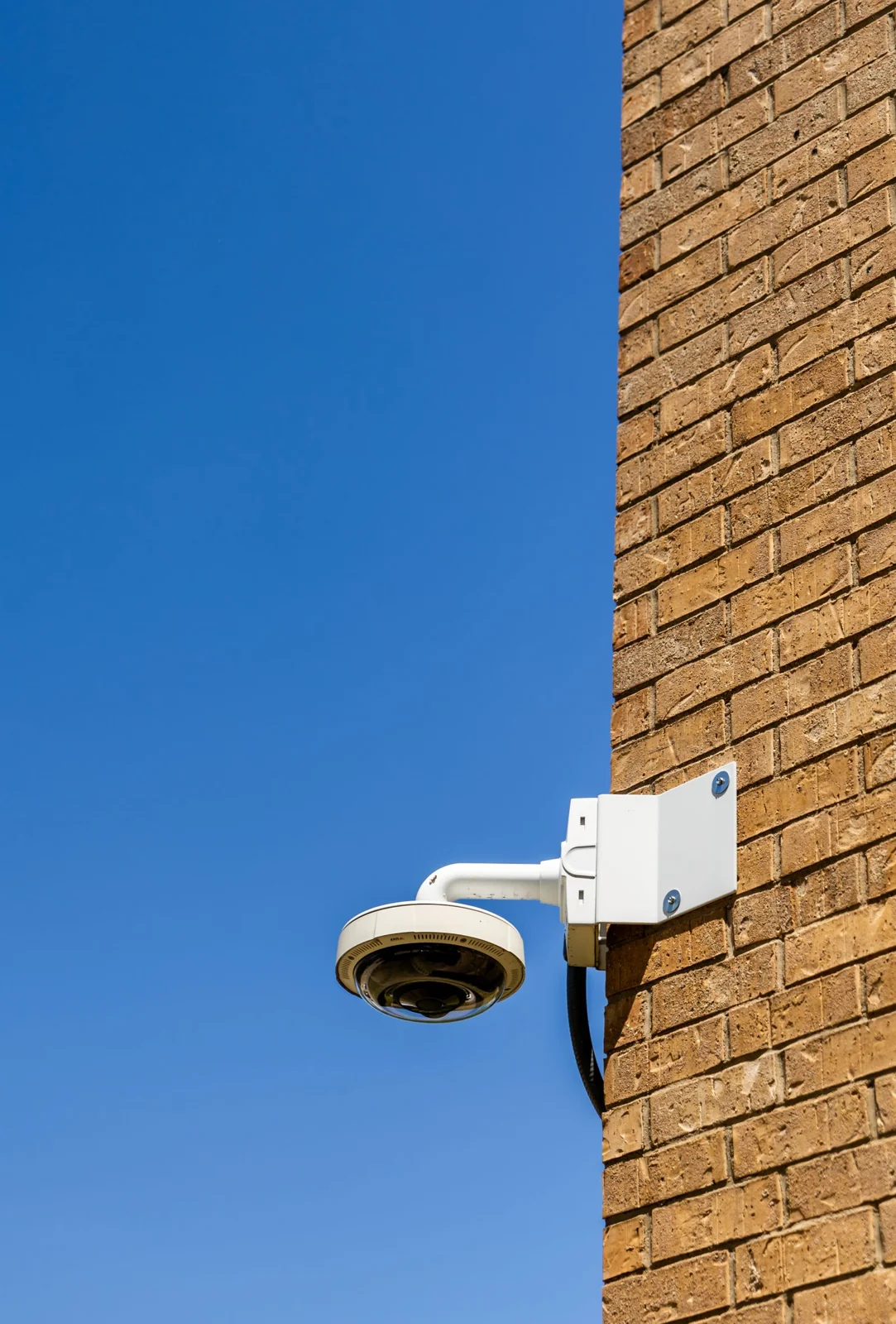
Ask what recording mode is configured: continuous, event-based or a mixture. If recording depends on events, check a representative event rather than assuming an empty timeline is a disk fault. Conversely, do not assume a drive is healthy just because one short clip plays. Have warnings, gaps and storage status assessed.
Check how far back usable footage actually goes under the current settings. Retention is affected by storage, bitrate, camera count and recording mode; it cannot be promised from the number of cameras alone. Agree on the history you need and whether the present setup can reasonably provide it.
Try a small export before an incident happens
Find a short test clip and ask the seller or technician to demonstrate exporting it using an authorised method. Play the exported file on another suitable device. Confirm the camera, time and content are correct, and keep instructions for repeating the process later.
If there is footage relevant to an existing incident, discuss preservation before changing storage or configuration. Do not format a drive as a general troubleshooting step. Resetting settings or replacing storage without a plan can make an already confusing handover harder to resolve.
Ask how recordings left by the previous household will be handled through the handover. Avoid casually browsing or distributing private historical footage. Where there is a dispute or an incident requiring preservation, get appropriate advice before deleting anything. The technical inspection should not become an excuse to share other people’s private activities.
For further context on recording and remote access, SIPKO’s Dahua home-camera guide covers the underlying system functions. This handover checklist focuses on proving which functions work in the house you are taking over.
Check remote viewing after the internet handover
A change of router, internet provider or Wi-Fi credentials can affect remote access. Ask the seller which CCTV connections depend on the existing network and whether any settings need professional review when it changes. Do not copy unknown router settings or expose recorder ports simply to make an app connect.
Once the new connection and owner access are ready, test DMSS while the phone is away from the home’s Wi-Fi. Check live view and playback separately. A connection that works only inside the house is not proof that remote viewing works. Record any error exactly, without publishing device identifiers or account details.
Then check that the event notifications you want arrive on the correct phone. App permissions, supported events and the installation’s configuration all matter. A camera appearing in the device list does not prove that every notification is enabled or that the alert relates to the right area.
Use the DMSS setup guide once ownership and credentials are settled. Repeatedly adding and removing the system is not a substitute for a proper handover, and installing an app alone does not repair a failed drive or missing camera feed.
Decide what to keep and what to improve
Keep serviceable equipment when it meets your needs, can be maintained and has appropriate support. Ask for a fault list that separates cleaning and adjustment, network or account work, storage replacement and camera replacement. That makes a quote easier to understand than a single recommendation to replace the entire installation.
Review the camera views for your household’s priorities. The previous owner may have cared about a different gate, parking space or side path. Discuss nearby properties and unnecessary views of private areas as part of the layout review. A useful system records the areas you need without treating more coverage as automatically better.
Have firmware and support status checked for the exact recorder and camera models. Do not install a random firmware file based on a similar product name. Regional variants and hardware differences can matter, and an update should have an appropriate backup and recovery plan.
- Equipment included with the property is documented.
- Owner and recorder access are established.
- Previous users and sharing routes have been reviewed.
- Every important camera has working live view and playback.
- Night images and a small export have been tested.
- Remote viewing works on the new internet connection.
- Faults, priorities and the support contact are written down.
FAQ
Five practical answers to the questions that matter next.
Can the previous owner still see my Dahua cameras?
They may retain access if accounts, sharing or credentials have not been handled properly. Arrange an authorised access review rather than assuming the house sale removes digital access automatically. Confirm both the recorder and app arrangements.
Is changing the recorder password enough?
It is one part of the process, not proof of a complete handover. DMSS binding, shared users, local accounts and recovery details also need review. Ask the installer to confirm which access routes exist on your particular system.
What if the seller does not know the password?
Use the installer or official support process with proof of ownership. The correct recovery method depends on the device and configuration. Avoid default-code lists, unofficial unlock services and resets performed without understanding their effect.
Do I need to replace the cameras to use DMSS?
Not automatically. First check recorder compatibility, supported remote access and the condition of the equipment. A configuration or handover issue can exist even when the cameras are serviceable. Confirm the exact models before approving replacements.
If I can see live video, is the system recording?
Not necessarily. Test playback, recording schedules, storage status and a short export. Live video and stored footage are separate checks, and both should work before you rely on the installation.
Make the inherited system yours
Keep the handover record with your other house documents and deal with access and recording checks before cosmetic upgrades. SIPKO provides Dahua CCTV repair and maintenance in Melbourne. Ask for an assessment of what can be retained, what needs correction and how to manage the system confidently after the visit.