Quick answer
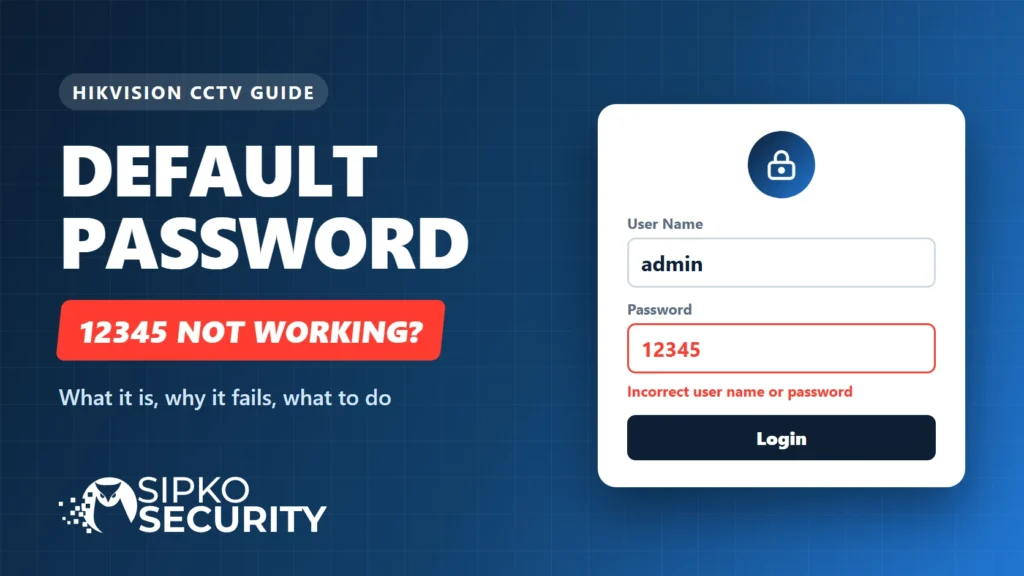
There is no single Hikvision default password. Older Hikvision devices used the username admin and the password 12345. Most modern devices use Secure Activation, so you create the admin password before first use, and a few camera models use admin plus the label verification code. A device that rejects admin/12345 has usually been activated with another password.
The short version
- Check SADP first: it shows whether a device is active or still needs a password.
- A camera on an NVR PoE port may use the recorder's admin password.
- The default IP address varies by model and firmware, so use SADP instead of assuming one.
On this page
- The short version
- What is the Hikvision default username and password?
- Why admin and 12345 do not work
- Where Hikvision passwords and codes live
- How to tell if your Hikvision device is activated
- How to activate a new Hikvision device
- Forgot the password you set?
- If you are locked out: what not to do
- How to secure a Hikvision system after you log in
- Hikvision default password FAQ
- Need help with a Hikvision system in Melbourne?
- Sources and further reading
This guide is for Hikvision cameras, NVRs and DVRs (and the HiLook and other devices that use the same tools) that you own or look after. We install and repair Hikvision systems every week, and the most common call is some version of “admin and 12345 do not work”. It covers what Hikvision’s own documents say, what changed on newer devices, and what to do when your login is rejected. Last checked 17 November 2026; if your model behaves differently, its own manual wins.
What is the Hikvision default username and password?
The username has stayed the same: admin. What changed is the password. Before Hikvision introduced Secure Activation, factory-reset devices used 12345. Hikvision’s guidance puts that change at firmware V5.3.0 for IP cameras and V3.3.0 for recorders, but each product family has its own threshold, so check your model. Most modern devices now ask you to create the admin password before first use, because a simple default makes unauthorised access easy. A few camera models instead use an initial password built from the label verification code, described below.
| Device | Username | Password | What to expect |
|---|---|---|---|
| Older devices from before Secure Activation | admin | 12345 | Widely reported as the old factory login. The cut-off varies by model, it may have been changed since, and it does not apply to every older camera, DVR or NVR. Treat it as a first try, not a guarantee. |
| Most current cameras and recorders | admin | The one you create at activation | The device is inactive until a password is created. There is no fixed default to look up. |
| Some camera models | admin | admin plus the verification code on the label | Hikvision’s Access Network Camera guide describes an initial password such as adminABCDEF for a code of ABCDEF. Check the guide for your model. |
Why admin and 12345 do not work
If admin/12345 is rejected, several things could explain it. Start with these common possibilities, or use the flow chart below.
It was already activated
This is the most common case. Someone created a password at activation, so there is no default left to find. The password is whatever they chose.
It still needs activating
A new device can wait for activation before it accepts a login. SADP, iVMS-4200 or the device’s own screen will show whether it is inactive.
Someone else set it
An installer, a previous owner or a landlord set it and never passed it on. If you bought a property with cameras fitted, see buying a house with Hikvision cameras.
The account is locked
Hikvision’s Access Network Camera guide says the illegal login lock is on by default: after seven failed admin attempts (five for a user) the IP address is blocked for 30 minutes. Other models vary, so wait and try once, not repeatedly.
The camera is on an NVR
A camera plugged into an NVR PoE port is normally given the recorder’s admin password, so there may be no separate camera password. Check the recorder’s camera settings first.
The label code is part of it
A few camera models use admin plus the verification code printed on the label as the initial password. Check the guide for your model.
Wrong password type
The device admin password, the Hik-Connect account password, an iVMS-4200 login and the device verification code are four different things. See the diagram below.
A sub-brand or reseller
HiLook and some reseller brands use Hikvision hardware or tools. Check the label for the real brand and follow that brand’s setup rules.
Where Hikvision passwords and codes live
A lot of “default password” searches come from mixing up four different things. Only the first one is the admin password most people mean.
- Device admin password: created at activation. It is used on the device’s web page, in SADP and iVMS-4200, and on the recorder’s own screen.
- Hik-Connect account password: the login for your cloud account in the Hik-Connect app. It has no default, because you registered it.
- iVMS-4200 login: the PC software can have its own login. It connects to devices using their admin passwords. Our iVMS-4200 setup guide covers the software.
- Verification code: normally an encryption key used when adding a device to Hik-Connect, and often printed on the label. On some camera models it is also part of the initial login: Hikvision’s Access Network Camera guide says the initial password is admin plus the verification code. Check the guide for your exact model.
Cameras connected directly to an NVR
Many people never log in to a camera on its own. They have a recorder with several cameras plugged into its PoE ports. In that case the camera password may simply be the recorder’s admin password: Hikvision’s plug-and-play guidance says the NVR assigns the camera an address and sets its password to match the NVR admin password when the camera is connected straight to a PoE port. Cameras behind an external PoE switch are added manually.
How to tell if your Hikvision device is activated
An activated device already has a password. An inactive one is waiting for you to create it. You can tell in three ways:
- SADP or iVMS-4200. Both show detected devices. Check the Security column: inactive devices are the ones that still need a password.
- The web page. Enter the device’s IP address (SADP shows it) in a browser. An inactive device shows an activation page, not a login page.
- The recorder’s own screen. After power-on, an inactive recorder goes to its activation screen.
The SADP tool is Hikvision’s free tool for finding devices on your network.
How to activate a new Hikvision device
Activation means creating the admin password. Hikvision’s web activation page and iVMS-4200 guide describe the same idea, whichever tool you use.
- Connect the device and put your computer on the same IP segment as the device’s address, which SADP shows.
- Open the activation screen. Use a browser at the device’s address, SADP or iVMS-4200 (Device Management, then the Security column), or the recorder’s own screen.
- Create the admin password and confirm it. The device checks the strength for you.
- Save or activate. The device confirms when the password is set.
- Then set the IP address to match your network, if you need to add the device to a system.
- Record the password in a password manager or on your handover sheet, with the device it belongs to.
Hikvision’s current web page sets these password rules. It recommends at least 8 characters using at least three of uppercase letters, lowercase letters, numbers and special characters. Some older Hikvision documents give 8 to 16 characters with two types, so use the stronger rule.
- Do not include the username, “123” or “admin” (in any capitals).
- Do not include “hik”, “hkws” or “hikvision” (in any capitals).
- Avoid four or more digits in a row, and four or more repeated characters.
- Use a password that is unique to this device.
Forgot the password you set?
This guide is about the default login. If you activated a device and lost the password, that is a recovery job, and it depends on your model and what was set up at activation. Our Hikvision password reset guide goes through the options step by step. For hands-on help in Melbourne, see our Hikvision password reset service.
If you are locked out: what not to do
- Do not keep guessing. Repeated wrong attempts can lock the account.
- Do not start with a factory reset. It clears your settings, and you may not need it.
- Do not download password tools or “master password” files from forums. They are unreliable and can carry malware.
- Do not try to get into a device you do not own or manage. In Australia that can be an offence.
How to secure a Hikvision system after you log in
Default and shared logins are well known, so set the device up as if someone will try them.
- Give every device its own strong password and store it in a password manager.
- Keep the firmware current. CISA lists CVE-2021-36260, a command-injection flaw in the web server of some Hikvision products, in its Known Exploited Vulnerabilities catalog (see the NVD entry). Updated firmware matters as much as a strong password.
- Do not expose the recorder directly to the internet. Use the app route or a properly secured connection, not open ports on your router.
- Review who has access. After a contractor, tenant or previous owner leaves, change the passwords and remove accounts you do not recognise.
Using Dahua equipment instead? See our Dahua default password guide. If a Hikvision camera shows no picture after you log in, start with the Hikvision not showing video guide.
Hikvision default password FAQ
The questions we hear most about Hikvision default logins.
What is the default username for a Hikvision camera or recorder?
The username is admin. Older Hikvision devices also used 12345 as the factory password. Most current devices have no default password, because Secure Activation makes you create the admin password before first use.
Is admin/12345 still the Hikvision default password?
Only on older devices, and not on every older camera, DVR or NVR. Hikvision’s guidance puts the end of default passwords at firmware V5.3.0 for IP cameras and V3.3.0 for recorders, and each product family has its own threshold. Check the manual for your model.
What is the default IP address of a Hikvision camera or NVR?
It depends on the model and firmware. Hikvision’s web activation guide gives 192.0.0.64, while its Access Network Camera guide gives 192.168.1.64, and its FAQ ties them to firmware (192.0.0.64 for v5.2 or earlier, 192.168.1.64 for v5.3 or later). Use SADP to see the address your device actually has.
What is the Hikvision default password when a camera is connected to an NVR?
There may be no separate camera password to find. When a camera is plugged straight into an NVR PoE port, Hikvision’s plug-and-play process normally sets the camera password to match the recorder’s admin password. Cameras behind an external switch are added manually. Check the camera or channel settings on the recorder.
Why does admin/12345 not work on my new Hikvision camera?
A new camera usually has no fixed default password. It is either waiting to be activated, where you create the password, or it has already been activated with a password you do not know. A few models use admin plus the verification code on the label. SADP or iVMS-4200 shows whether the device is active.
What is the Hik-Connect default password?
There is none. Your Hik-Connect login is the account you registered in the app. It is separate from the device admin password. The verification code is a different thing again, although some camera models use it as part of their initial login.
What is the iVMS-4200 default password?
iVMS-4200 connects to each device with that device’s admin password. If the software itself asks you for a login, it is one that was created when it was first set up on that computer.
Can I use the same password on all my Hikvision devices?
Hikvision’s guide notes that devices activated in a batch share the same password. It is convenient, but we recommend a unique password for each device, so one leaked password cannot open them all.
Is it legal to reset a Hikvision password I did not set?
If the system is yours, or you are authorised to manage it, yes. Getting into a device you are not allowed to use can be an offence in Australia. If you bought a property with cameras fitted, ask the seller for the details first.
Need help with a Hikvision system in Melbourne?
If you are locked out, have inherited a Hikvision system, or want a recorder checked and set up properly, we can help. See our Hikvision camera repair service, the Hikvision password reset service, or our CCTV installation. Call 0406 432 691.
Sources and further reading
- Hikvision: Activate via Web Browser (default IP address, password rules)
- Hikvision: Create Password for Inactive Device(s), iVMS-4200 (activation, batch passwords)
- Hikvision: Access Network Camera guide (default IP address, initial password with verification code, login lock)
- Hikvision: How to add an IPC with PoE function to an NVR (plug-and-play, camera password)
- Hikvision: SADP tool (finding devices on your network)
- Hikvision: Network Camera Security Guide (security recommendations)
- CISA: Known Exploited Vulnerabilities catalog (CVE-2021-36260)
- NVD: CVE-2021-36260
The Hikvision details above come from Hikvision’s own pages and can change with firmware updates. The older admin/12345 default and the firmware thresholds are widely reported and appear in Hikvision guidance, but they vary by product family, so check your model’s manual. The order of steps and the advice on what to check are our own guidance from working on Hikvision systems. Last checked 17 November 2026. SIPKO Security, Security Adviser and Equipment Installer Licence Z47-808-30S.

Did this fix it?
Good to hear. If we saved you a call, a short Google review helps other Melbourne homes find honest advice.
Leave a Google reviewLet us take a look. Tell us what you found and a licensed installer will help you find the cause.
Get a free quote or call 0406 432 691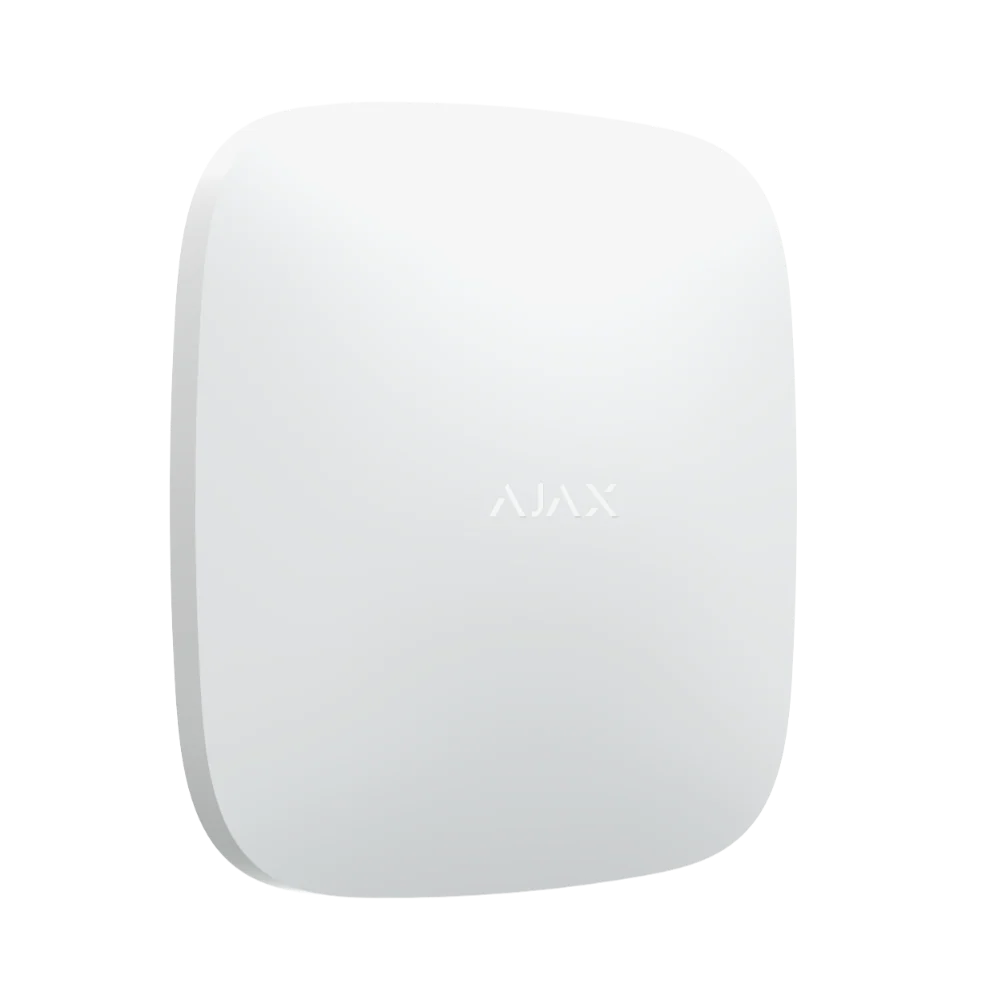 Featured Ajax product
AJAX Hub 2 Plus
The advanced security panel at the heart of an Ajax system. It connects up to 200 devices.
See the Ajax system →
- Licensed and insured
- Licence Z47-808-30S
- Melbourne and Mornington Peninsula
- Free onsite quote
Google reviews
What Melbourne customers say


Local help from SIPKO
SIPKO Security
Get your free onsite quote
Tell us about your property. A licensed installer will get back to you with a clear, honest answer.
- Licensed and insured
- Melbourne and Mornington Peninsula
- Mon to Sat, 8am to 6pm
The quote form opens as you scroll here.