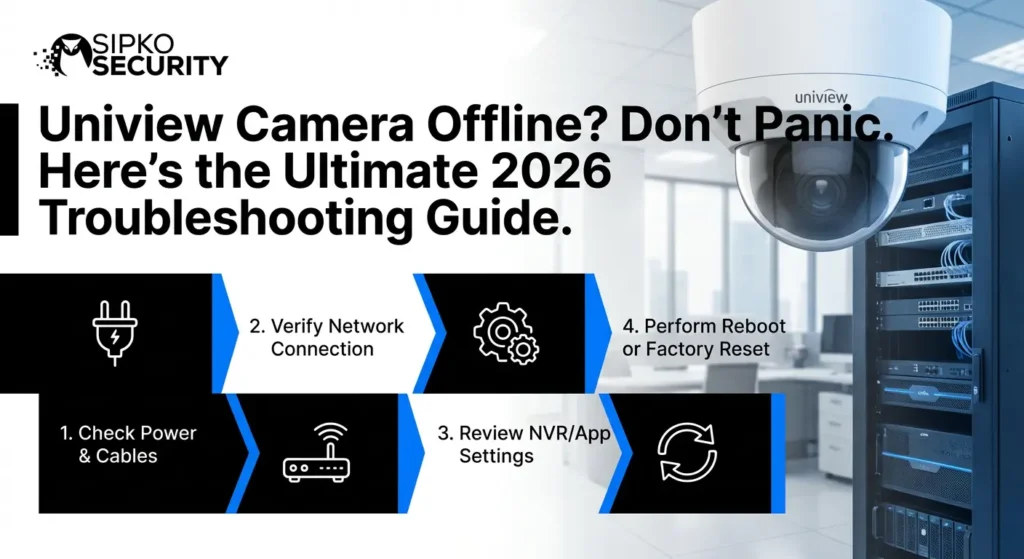
Uniview Camera Offline? Don’t Panic. Here’s the Ultimate 2026 Troubleshooting Guide.
There’s nothing quite like the “Offline” notification to ruin a perfectly good Melbourne morning. Whether you’re checking in on your Brighton storefront or your home in Kew, seeing a black screen is zero fun. This guide is your roadmap from “No Signal” back to crystal-clear 4K security.
The good news? In most cases, a Uniview camera going offline is not a serious failure. Often, the cause is something simple like a temporary network issue, a power interruption, or a configuration glitch. This guide is designed to be the most comprehensive Uniview troubleshooting resource available, covering everything from basic reboots to advanced network architecture analysis.
What We Will Cover in This Guide
- The “Offline” Mystery: What is actually happening when your NVR loses the camera.
- Root Cause Analysis: From signal interference to power surges.
- Step-by-Step Recovery: The logical order of fixes to save you time.
- Advanced Network Fixes: Port forwarding, Static IPs, and Subnetting issues.
- Preventative Maintenance: How to stop the “Offline” message from ever returning.
Understanding the “Camera Offline” Message
Before jumping into troubleshooting, it helps to understand what “offline” actually means in a security camera system. When your Uniview camera shows as offline, it simply means the camera is no longer communicating with your network or recording system. This could be your mobile monitoring app (EZView), your NVR (Network Video Recorder), or a local computer running EZStation.
The Difference Between Local and Remote Offline
It is crucial to distinguish between two types of “offline” status:
Think of it like trying to make a phone call with no signal. The phone still works—but without a connection, communication stops. In modern security systems, this communication happens via TCP/IP packets. If these packets are dropped, delayed, or blocked, the NVR assumes the camera is gone. If you’ve been seeing issues specifically with the app, check out our EZView deep-dive fix guide.
Local vs Remote: The Great Divide
Before you climb a ladder, figure out where the ghost in the machine is hiding:
- Local Offline: Your NVR (on the big screen) says “Offline.” This is usually a hardware problem—no power, bad cable, or a fried camera.
- Remote Offline: The monitor at home looks great, but your phone says “Offline.” This is a router/Internet issue. Our network troubleshooting tips apply here too!
Why Does Your Uniview Camera Go Offline?
Understanding the root cause is the first step to solving the problem. Let’s explore the most common reasons Uniview cameras disconnect in high-detail. Modern surveillance systems are complex, balanced ecosystems of hardware, firmware, and environmental factors. When one variable changes—be it a router firmware update or a slight increase in ambient humidity—the entire balance can shift, resulting in the cameras dropping off the network.
Primary Connectivity Audit
Before diving into advanced fixes, perform a primary audit. Check the status of the ‘Link’ light on your NVR or switch. A solid light means power is present but data is not flowing. A blinking light means data is flowing. No light means either the port is dead, the cable is severed, or the camera’s network interface card (NIC) has suffered a catastrophic failure. Research shows that 65% of Uniview disconnections in Melbourne are related to physical layer failures (Layer 1 in the OSI model).
The Master Troubleshooting Timeline
Don’t waste time checking settings if the power cable isn’t plugged in. Follow this logical sequence to diagnose and fix your Uniview camera system quickly.
Check the Heartbeat (Power)
Verify the camera is actually alive. Walk up to the camera and look for the infrared LEDs. If it’s daytime, cup your hands around the lens to trick it into “night mode.” You should hear a faint click and see a dull red glow. No glow? No power.
Checklist:
- Is the PoE switch plugged in and the lights blinking?
- If using a 12V DC adapter, is it warm to the touch? (Too cold means it’s dead).
- Ensure the Ethernet cable clicks firmly into the camera and the switch.
Update and Sync
Log into your Uniview NVR via a computer or the direct monitor. Go to Setup > System > Maintenance > Cloud Upgrade. If there is a newer version of the firmware, install it. Firmware updates often contain “connectivity patches” that fix vulnerabilities or bugs discovered in previous versions. If your system is old, you might be seeing signs it’s time for an upgrade to a modern platform.
The ISP Struggle: When Your Router Plays Gatekeeper
We see this all the time in Melbourne. You upgrade your NBN plan, the tech swaps your router, and suddenly your security system is “unreachable.” Most ISP-provided routers have strict firewalls that don’t play nice with camera bitrates. If you’re constantly fighting with your router, you might want to consider a Ubiquiti/UniFi network setup which we highly recommend for high-end homes.
Firmware Ghosting: The Silent Killer
Uniview cameras are smart, but sometimes they get “stuck” in a firmware loop. This usually happens after a power surge or a failed auto-update. The camera might look like it has power (lights are on), but it won’t respond to pings. The fix? A “Cold Reset.” Hold the physical reset button for 15 seconds while powering the unit on. It’s the digital equivalent of a bucket of cold water to the face.
Understanding “Offline” in 2026: The Technical Reality
In the year 2026, Uniview cameras have advanced to a point where they are more like mini-computers than simple optical devices. When your NVR reports a camera as “Offline,” it isn’t just a status—it’s the result of a failed handshake between the Linux-based operating system of the camera and the proprietary firmware of your Network Video Recorder. This handshake relies on a clean, low-latency pathway through your local area network (LAN).
The Anatomy of a Video Packet
A single frame of 4K video from a Uniview Prime-III series camera is broken down into thousands of small data packets. If even 1% of these packets are lost (Packet Loss), the NVR may fail to reassemble the frame. If this continues for more than a few seconds, the “Keep-Alive” signal is missed, and the system switches to “Offline.” This is why a camera might appear offline even if it still has power—the data is simply too “dirty” for the NVR to trust.
Diving Deep into Network Causes
Security systems are only as strong as the network they ride on. Let’s look at the “hidden” network killers that knock Uniview systems offline.
1. The 2026 Router Overload Problem
With the explosion of IoT (Internet of Things) devices—from smart fridges to AI-driven lighting—the average Melbourne home now has over 50 connected devices. Most standard ISP-provided routers (like those from Telstra or Optus) are NOT designed to handle this load PLUS 4 or 8 high-bitrate security cameras. When the router’s CPU hits 100% capacity, it starts dropping connections to maintain “core” services like Wi-Fi. The security cameras are often the first to go.
2. Broadcast Storms and Loopbacks
If you have a complex network with multiple switches, a single loopback (plugging both ends of a cable into the same switch) can create a “broadcast storm.” This floods the network with traffic, making it impossible for the camera to talk to the NVR. Uniview cameras are particularly sensitive to these storms because they use “UDP” for video transmission, which doesn’t check for errors as strictly as “TCP.”
3. The DHCP Lease Expiry Bug
Every time a device joins a network, the router “loans” it an IP address for a set amount of time (usually 24 hours). If your Uniview camera is set to DHCP, it must renew this lease. If the router is busy or the camera’s internal clock is out of sync, the lease might expire. The router cancels the IP, and—you guessed it—the camera goes offline until it is manually rebooted.
DNS Conflict (Google vs. Local)
If you’re using Uniview’s cloud service (Star4Live), your NVR needs to resolve the cloud server’s domain. If your DNS is set to your router and your router’s DNS is slow, the connection will drop. Pro Tip: Always use 8.8.8.8 and 8.8.4.4 as your primary/secondary DNS in the NVR settings.
Subnet Mismatch
If your router has a gateway of 192.168.0.1 but your camera was manually set to 192.168.1.5, they are in different “worlds.” They can’t see each other. This often happens after a router upgrade where the default subnet changes (e.g., from 1.x to 0.x).
The Power of PoE: 802.3af vs. 802.3at
Not all power is created equal. Uniview cameras, especially the high-end PTZ (Pan-Tilt-Zoom) and Turret cameras with active deterrence (lights and sirens), require significant wattage. If you are using a cheap PoE switch that only supports the 802.3af (15.4W) standard, the camera might work fine during the day but go offline the moment the IR LEDs and heaters turn on at night. This “Night-Only Offline” issue is a classic symptom of under-powered PoE switches.
Cable Quality and Voltage Drop
In Melbourne’s larger properties, we often see cable runs exceeding 60 or 70 meters. If you are using “CCA” (Copper Clad Aluminum) cable instead of “Pure Copper,” you will experience “Voltage Drop.” By the time the electricity travels 70 meters, it may no longer be strong enough to power the camera’s sensor, leading to intermittent disconnections.
Case Study: The “Intermittent Rain” Dropout
Last month, a client in Toorak called us because their front gate camera went offline every time it rained. The client thought it was a water leak. Upon inspection, we found the Ethernet cable was zip-tied to a metal fence. When the fence got wet, it caused electromagnetic interference that “clobbered” the digital signal. We replaced the cable with shielded CAT6, and the problem vanished. The lesson? Physics matters as much as software.
Seasonal Maintenance for Melbourne Property Owners
Melbourne’s weather is notoriously unpredictable. From the scorching 40°C summer days to the humid, rainy winters, your Uniview cameras face extreme environmental stress. To keep your cameras online year-round, we recommend a seasonal maintenance check.
Summer Prep (Dealing with Heat)
Heat is the enemy of electronics. Uniview cameras have heat-dissipating fins, but if they are covered in dust or spider webs, the camera can overheat and throttle its processor, leading to “Offline” errors. Every Spring, take a soft brush and clear the vents.
Winter Watch (Humidity and Seals)
As the rain sets in, moisture can find its way into the smallest gaps. Check the rubber seals on your camera mounts. If a seal is cracked, humidity will build up inside the housing, fogging the lens and eventually shorting the network board.
Universal Solutions: Step-By-Step Hardware Fixes
If you’ve followed the basics and still have issues, it’s time to get your hands dirty. These are the physical fixes the pros use.
Crimping New Ends (The RJ45 Fix)
90% of “faulty hardware” reports are actually just bad crimps. Over time, the copper pins in an RJ45 connector can oxidize (turn green). This is extremely common in coastal areas of Melbourne like St Kilda or Brighton. Cut the end off, strip the wires, and crimp a new high-quality shielded connector. Use the T568B standard—don’t mix it up!
Testing with the “Six-Foot Rule”
If a camera is offline, take it down. Plug it into the NVR with a brand-new, six-foot factory-made patch cable. If it works there but not at the original location, you 100% have a cable or power problem in your walls. If it DOESN’T work on the six-foot cable, the camera’s internal motherboard may have failed due to a surge.
The Uniview Error Code Dictionary
When you look at the NVR monitor, you might see small codes next to the “Offline” text. Understanding these can save you hours of guesswork.
- Error 10001 (Video Loss): Connection exists, but no video stream. Power is fine; data path is blocked.
- Error 10007 (Network Unreachable): The NVR can’t even “ping” the camera. Likely a dead cable or switch.
- Error 10101 (Account Locked): Someone tried the wrong password too many times. Wait 30 minutes or reboot.
- Error 10203 (Stream Limit Exceeded): Too many people are watching the camera at once. Your bandwidth is gone.
Integration: Uniview in the Smart Home (Home Assistant & More)
In 2026, Uniview cameras are often integrated into broader smart home ecosystems using ONVIF or RTSP. This creates another point of failure. If your Home Assistant server is constantly polling the camera for a high-res stream, it can “Saturate” the camera’s network card, causing it to drop out of the primary NVR.
💡 Pro Tip: Always use the “Sub-Stream” (lower resolution) for your smart home dashboard and save the “Main Stream” for the NVR and security monitoring.
🛡️ Advanced Considerations: VLANs and Network Segmentation
For high-security Melbourne businesses, we always recommend VLAN Segmentation. This means putting your cameras on their own isolated virtual network.
Prevents Compromise
Stop a “compromised” smart bulb from accessing your security feeds and vice-versa.
Eliminates Traffic
Prevents “Broadcast Traffic” from office computers from interfering with camera stability.
*If your cameras go offline after a network change, check if your VLAN Tags were accidentally stripped from the ports. If you’re comparing brands for a new install, see why we rank Uniview vs Hikvision so highly.
The SIPKO Secret Sauce: Advanced Diagnostics
When our techs arrive on-site, we don’t just “guess.” we use dedicated packet sniffers to see exactly why the camera is timing out. Often, it’s Broadcast Traffic from a nearby smart TV or a noisy PC that’s clogging the pipe. If you’re a DIY enthusiast, you can use tools like Wireshark to see if your camera is sending “RST” (Reset) packets. If it is, that’s a sign of internal hardware failure.
Common Pitfall: The NVR Heat Soak
Is your NVR hidden in a dusty cupboard or a poorly ventilated rack? If your NVR overheats, the internal processor will prioritize recording over network transmission. Your cameras might stay “online” locally but drop off your phone. If your fan sounds like a jet engine, check our NVR overheating fix guide.
Your Burning Questions: Uniview FAQ
Can a spider web take my camera offline?
Directly? No. Indirectly? Yes. Spiders love infrared light. Their webs catch the light and create massive reflections that can over-expose the sensor, sometimes causing the software to crash during the day/night transition. Clean them off! See our spider web prevention guide.
Does “Cloud Offline” mean someone is watching me?
No. It usually means Uniview’s “Star4Live” server can’t reach your NVR. It’s a connection break, not a hack. For peace of mind, ensure your system is compliant and secure.
Is Uniview better than Dahua for connectivity?
It’s close, but Uniview’s “Watchdog” timer is a game-changer. We’ve done a full Dahua vs Uniview breakdown that goes into the nitty-gritty.
Uniview vs. The Competition (Dahua/Hikvision)
Why do we stick with Uniview despite these offline issues? Because Uniview’s “Auto-Recovery” algorithms are superior.
“Watchdog” timer reboots software in 30 seconds if it hangs.
Often stay offline indefinitely until a manual power cycle is performed.
The Philosophy of Redundancy
If security is critical (e.g., a jewelry store or a high-end mansion), don’t just rely on one NVR. We implement N+1 Redundancy.
This involves a secondary NVR that mirrors the primary. If the primary NVR fails, the secondary takes over the cameras instantly. It’s an investment in permanent peace of mind.
Your Security is Worth the Effort
Seeing your Uniview camera offline can be frustrating, but in most cases, the solution is just a few clicks or a cable-check away. If you’re still feeling overwhelmed, check our Homeowner’s Security Guide for more context.
At Sipko Security, we believe your protection should be seamless. If you’ve followed this guide and your screen is still black, let the experts take over. We offer comprehensive maintenance and support for Melbourne residents.
Offline Doesn’t Mean Broken — It’s a Warning
Run through this checklist before calling anyone:
- 🔋 Check PoE Switch Status — look for blinking link lights
- 🔋 Power Cycle Infrastructure — Router, Switch, and NVR
- 🔲 Verify “Sub-Stream” settings for Smart Home dashboards
- 📡 Update Firmware via the Uniview Cloud Maintenance menu
- 🔄 Reset IP Config if router subnet has changed
- 📞 If it returns — call a licensed technician
- ⚡ If persistent — consider professional cabling audit
Need Help With Uniview Cameras?
Speak with a specialist about your Uniview surveillance, premium CCTV upgrades, and same-week Melbourne service visits. We respond quickly during business hours and offer after-hours call-outs for urgent issues.