EZView App Not Showing Video? A Melbourne Tech’s Fix Guide
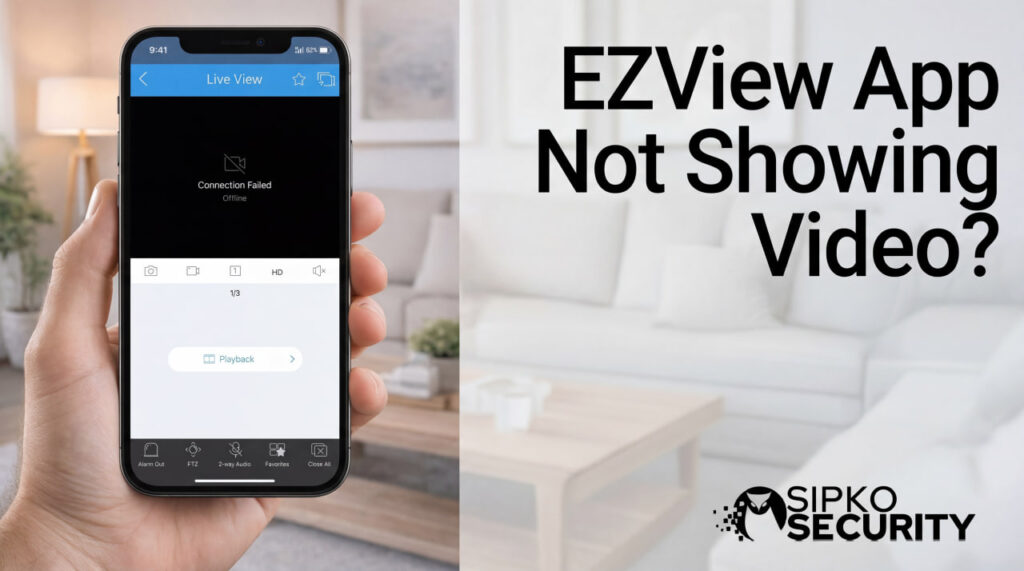
Opening the EZView app to quickly check a Melbourne home or shop, only to see a grey screen or “Device Offline”, is a horrible feeling. Here is how to trace the “broken link” and bring your system back online.
Introduction
Opening the EZView app to quickly check a Melbourne home or shop, only to see a grey screen or Device Offline, is a horrible feeling. When the EZView app not showing video message appears right after a storm, a break‑in down the street, or an alarm notification, it is easy to assume the whole CCTV system has failed. Heart rate goes up, and the first thought is that every camera might be useless.
As our technicians at SIPKO Security like to say, “Treat every offline camera as a broken link in a chain – check each link calmly, and the picture usually comes back.”
We see this all the time. As local installers at SIPKO Security, we support Uniview systems and the EZView app across Melbourne homes, shops, warehouses and offices. In most cases, when EZView is not showing video or the camera looks offline, the problem is not a dead camera. It is almost always a break somewhere in the chain between the cameras, NVR, router, internet and phone.
Visualizing the simplified connection path
In this guide, we walk step by step through that chain. We start with quick fixes that solve most EZView app not showing video problems in under 10–15 minutes, then move into deeper checks on the network, NVR settings and the app itself.
✓ Key Takeaways
- ⚡
Connectivity: Most issues are network or power related, not broken hardware.
- 🔄
Quick Fix: Restart Phone -> NVR -> Router. Solves 80% of glitches.
- 📱
Settings: Switch to Sub-stream (SD) for stable mobile viewing.
- ☁️
Cloud Status: NVR must show “Online” in P2P settings.
- 🔌
Physical: Check cables and power lights first.
What Causes the EZView App to Stop Showing Video?
Network & Connectivity
Internet outages, flaky NBN connections, weak mobile data, or firewall blocks. The path to the cloud is broken.
Hardware & Power
Tripped power boards, dead PoE ports, or loose cables. The device is physically off.
App & Software
Outdated app versions, corrupted cache, or missing mobile data permissions.
Configuration
Wrong passwords, P2P disabled on NVR, or blocked IP addresses.
First Steps: The 15-Minute Rapid Fix
Before diving into complex menus, follow this exact restart sequence. This fixes 80% of “Device Offline” errors.
Full power off (30s). Refreshes mobile data/WiFi.
Unplug power. Wait 1 min. Plug back in.
Clears IP conflicts and refreshes NBN link.
Once everything has restarted, check that both ends of the connection have internet:
- On the phone, open a browser and load a site such as google.com.au.
- Try switching between local Wi‑Fi and 4G or 5G.
- Update the EZView app via App Store or Google Play.
The Mainstream vs. Sub-stream Solution
One of the most common reasons for the EZView app not showing video on mobile data is the stream type. Switching to Sub-stream (SD) often fixes it immediately.
| Feature / Aspect | Mainstream (HD / Clear) | Sub-stream (SD / Fluent) |
|---|---|---|
| Resolution | 1080p, 4K (High) | D1, CIF (Low) |
| Best Use | Evidence, Faces, NVR Recording | Remote Viewing, 4G/Mobile |
| Data Usage | High (4000+ kbps) | Low (512 kbps) |
| Playback Smoothness | Can stutter on weak nets | Very Smooth & Fast |
| Digital Zoom | Clear, detailed zoom | Becomes pixelated |
| Audio | Supported | Supported |
| Battery Impact (Mobile) | High (Heavy decoding) | Low |
Diagnosing Deeper Issues
If the quick fixes and stream changes didn’t work, we need to look deeper.
1. Network & Cloud Status
- Log into the NVR using a monitor and mouse.
- Go to Network -> P2P / EZCloud.
- Status must be “Online”. If it says “Offline”, your NVR cannot talk to the internet. Check cable to router.
2. Camera Status
- Check the live view on the NVR monitor.
- If a camera is black/offline on the NVR itself, it’s a cable/power issue, not an app issue.
- Check PoE lights on the back of the NVR.
FAQs
Why Does My EZView App Say ‘Device Offline’ When My Internet Is Working?
It means the app cannot reach your NVR. Your phone has internet, but the recorder might be powered off, disconnected from the router, or blocked by a firewall. Check the P2P status on the NVR.
How Do I Switch from HD to SD Quality?
Tap the “HD” or “Clear” icon in the live view toolbar. Select “SD” or “Fluent”. This switches to the lighter Sub-stream, which works much better on mobile networks.
Can I View Cameras Without EZView?
Yes. You can use a monitor connected to the NVR (HDMI), the EZStation PC software, or a web browser via the NVR’s IP address (e.g., 192.168.1.x).
Why Won’t My EZView App Load Video Over 4G but Works on Wi-Fi?
Usually because you are trying to stream HD (Mainstream) over a weak 4G connection, or because the NVR’s P2P status is offline (WiFi works because it’s local direct connection, 4G requires Cloud).
How Long Should I Wait After Restarting?
Wait at least 5-10 minutes. The NVR needs time to boot, power the cameras via PoE, and handshake with the router/Cloud before it will show “Online”.