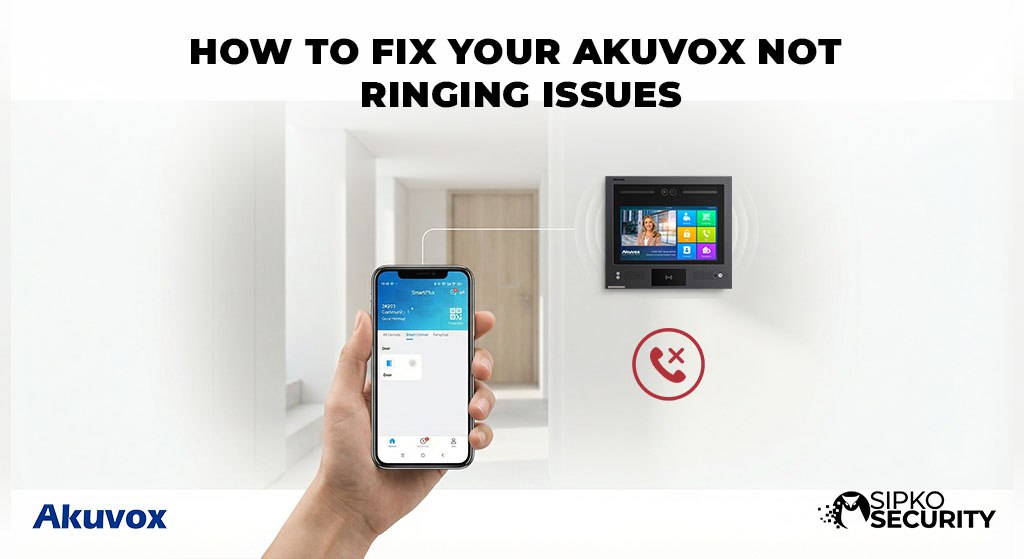
How to Fix Your Akuvox Not Ringing Issues
Missing visitors? We’ve made this easy to follow. Here is our 9-part guide to getting your intercom screens and phone app ringing again.
Check the System Connection
Before checking cables, you must confirm the software is “talking.” Your Akuvox monitor can only ring if it has a valid connection to the main system.
If this connection is broken, the system won’t know where to send the call signal—which means your device stays silent.
-
Go to Settings > Status > Account
-
Make sure “Register Status” says Successful (in Green)
-
Check that your Cloud ID matches your Mobile App Account
Common Cause
Most connection failures happen after your internet provider makes an update. Your router might be blocking the intercom from talking to the outside world.
Try an Internal Call Test
We need to find out: is it the monitor screen or the lobby doorbell? By calling from your Indoor Screen to your Phone App, you ignore the front door completely.
If it Rings:
This proves your screen and speakers are working perfectly. The problem is with the Main Door Bell settings.
If it’s Silent:
The screen stays dark. The app alerts you but the screen makes no sound—the Internal Software has likely crashed.
Check Where Calls Are Going
Correct Settings
Make sure your doorbell button is set to call your specific apartment or room number. If these are “disconnected”, the call won’t find you.
Ring Time
Check that the “Ring Time” is set to at least 30 Seconds. If it’s too short, the call might end before your monitor even starts making a sound.
Check for “Silent Mode”
Users often turn on **Silent Schedules** without meaning to. If your intercom stops ringing at night (like after 9 PM), your system is likely following a pre-set silence rule.
Icons to Look For:
- The Moon: Do Not Disturb is currently ON.
- Clock with Moon: A Night-time schedule is active.
- Speaker with a Line: The volume is muted.
Quick Check
Swipe down from the top of the monitor screen to see the “Quick Settings” bar. Make sure the bell icon isn’t tapped or grayed out.
Restart the Power
Like any computer, sometimes a simple restart fixes everything. Turning the power off and on refreshes the system and clears errors.
Unplug Wire
Carefully unplug the internet cable from the back of the indoor screen.
Wait 60 Secs
This allows the device to completely shut down its internal memory.
Plug Back In
Connect it again and wait for the screen to show “Successful Connection”.
Fix Network Address Mix-ups
In a modern home, too many devices (like TVs and Speakers) are fighting for the same “parking spot” on your Wi-Fi. If your intercom gets mixed up with another device, it will intermittently go silent.
Why it works
This ensures the doorbell station can always find your indoor screen instantly without getting lost or confused by other gadgets.
Fix Your Phone App Alerts
Both iPhones and Androids are very strict about saving battery. If your **Akuvox SmartPlus App** isn’t given special permission, your phone will “put it to sleep”—meaning it won’t ring when the screen is locked.
App Settings to Check:
- Battery Saver: Turn OFF for Akuvox
- Alerts/Notifications: Turn ON
- Ignore Silent Mode: Allowed
The Full System Reset
If the system software has become deeply confused—perhaps after a power outage—you might need to wipe it and start fresh. This is a big step that clears all old errors and restarts exactly like a brand-new unit.
The Final Internet Test
This is the smartest way to test: Connect your monitor to your Phone’s Mobile Hotspot. If it rings perfectly there, but fails on your home internet, your Home Router settings are the problem. Your router is likely “filtering” or blocking the call signal.
Router vs. Connection Test
Common Questions Answered
Everything you need to know, without the jargon.
Why does my phone ring but the wall screen doesn’t?
This is usually due to a local connection problem at home. The internet is reaching your phone app, but it is failing to find your screen inside the house.
Can I ring multiple phones at once?
Yes. You can add your whole family to the app so everyone hears the visitor at the same time.
What is the default password?
Most systems start with admin for both username and password, unless your installer changed it for extra safety.
Does it ring if the internet is down?
It will ring your indoor screens if they are on the same Wi-Fi, but your phone app will not receive calls until the internet is back.
How do I change the doorbell sound?
Inside the monitor, go to Settings > Audio > Ringtone. You can choose different sounds for the main door and internal calls.
Why is there a delay before it rings?
This usually means your internet connection is a bit slow, or your home router is “inspecting” the signal too closely before letting it through.
Never Miss a Visitor Again
Still having trouble getting your intercom to work? Our Melbourne experts can help fix your system and get everything ringing perfectly again.